

Have you ever closed every application on your laptop, only to hear its cooling fan spinning loudly? I’ve experienced this frustrating situation, especially when my computer appears completely idle. If you’re asking, ” Why is my laptop fan running when nothing is open, the answer often involves hidden background processes, overheating, dust buildup, or power settings.
Fortunately, a constantly running laptop fan doesn’t automatically mean something is broken. Sometimes, your computer is simply performing maintenance tasks without displaying any open windows. In this guide, I’ll explain the most common causes and practical solutions to help restore quieter, more efficient laptop performance.
Is It Normal for a Laptop Fan to Run When Nothing Is Open?
Yes, occasional fan activity is normal, even when you’re not actively using your computer.
Modern laptops continuously monitor internal temperatures and adjust cooling automatically. Windows updates, antivirus scans, file indexing, and background synchronization can consume processing power without opening visible applications.
However, a laptop fan running constantly while idle may indicate excessive CPU usage, restricted airflow, or incorrect cooling settings.
If the fan occasionally speeds up and slows down, there’s usually no reason to worry. Persistent high-speed operation deserves closer investigation.
Why Does My Laptop Fan Keep Running When Nothing Is Open?
Understanding the underlying cause is the first step toward fixing unnecessary laptop fan noise.
1. Hidden Background Processes Are Using CPU Resources
Closing application windows doesn’t necessarily stop every associated process.
Cloud storage services, browser extensions, background utilities, and automatic updates can continue consuming CPU resources.
When processor activity increases, your laptop generates additional heat, activating its cooling system.
This is particularly common among Windows 11 laptops with multiple startup applications.
2. Windows Updates and Antivirus Scans Are Running
Windows frequently performs maintenance activities, including downloading updates, scanning files, and organizing search indexes.
Microsoft Defender may also run scheduled security scans without displaying a separate application window.
These activities explain why your laptop fan might suddenly become louder while you’re doing nothing.
Usually, fan activity decreases once the background task finishes.
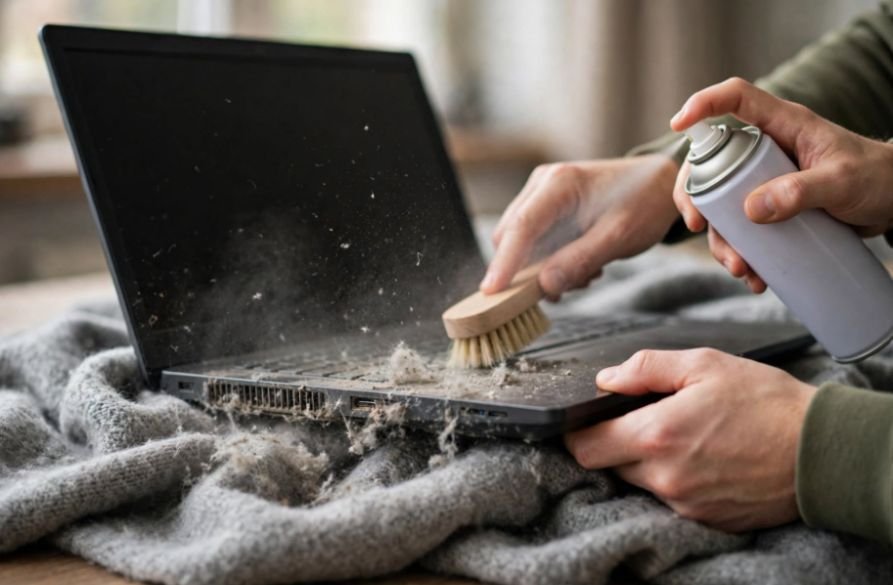
3. Dust and Blocked Air Vents Are Trapping Heat
Dust accumulation restricts airflow through cooling vents and heat sinks.
As internal temperatures rise, the fan spins faster to remove excess heat.
Using your laptop on a blanket, couch, or other soft surface can worsen this problem by blocking ventilation openings.
Even a laptop fan running constantly but not hot externally may indicate localized heat around internal components.
4. High-Performance Power and Active Cooling Settings
Many laptops offer performance-focused power modes that prioritize processor speed over energy efficiency.
These settings can increase heat production and fan activity.
Some Windows systems also support active cooling policies that increase fan speed before reducing processor performance. Passive cooling approaches reduce processor power consumption first.
The available settings depend on your laptop’s hardware and manufacturer.
5. BIOS Fan Always On Settings Are Enabled
Some laptops include a BIOS or UEFI option called “Fan Always On.”
When enabled, this setting may keep the cooling fan operating continuously, even during periods of light activity.
Certain HP laptops include this feature, while Dell and other manufacturers may provide different thermal-management controls.
Not every laptop offers a user-adjustable fan setting.
6. Charging and Room Temperature Increase Heat
Your laptop may generate additional heat while charging, particularly when background processes are active.
Warm rooms, direct sunlight, and inadequate ventilation can also increase cooling demands.
This explains why a laptop fan running constantly while charging may become quieter after disconnecting the charger or moving to a cooler environment.
7. Outdated Firmware or Hardware Problems
Outdated drivers, firmware issues, or incorrect thermal configurations can affect cooling behavior.
A worn fan bearing or damaged cooling assembly may also produce excessive noise.
Grinding, rattling, or buzzing sounds can indicate mechanical problems rather than normal airflow.
How to Stop Your Laptop Fan From Running Constantly

If you’re wondering why my laptop fan is running when nothing is open, I recommend starting with these troubleshooting methods before considering professional repairs.
Check CPU Usage Using Task Manager
On Windows 11, press Ctrl + Shift + Esc to open Task Manager.
Select Processes and click the CPU column to identify applications consuming excessive processing resources.
Close unnecessary programs normally and check whether fan noise decreases.
On a MacBook with a cooling fan, open Activity Monitor from Applications > Utilities and inspect the CPU tab.
Avoid terminating unfamiliar system processes.
Switch to Balanced or Best Power Efficiency Mode
Open Windows Settings, select System, and navigate to Power & battery.
Under Power mode, choose Balanced or Best power efficiency instead of Best performance.
These options can reduce unnecessary processor activity and heat generation.
If your laptop supports adjustable cooling policies, use the manufacturer’s recommended balanced or quiet thermal profile.
Clean Your Laptop’s Air Vents
Shut down your laptop and disconnect its charger before cleaning.
Use a soft brush to remove visible dust around ventilation openings.
Manufacturer-approved compressed-air cleaning may also help, but avoid overspinning the fan or pushing debris deeper inside.
Never insert sharp objects into cooling vents. Consider professional cleaning if significant internal dust buildup is suspected.
Disable Unnecessary Startup Applications
Excessive startup programs can keep your CPU active long after Windows loads.
Open Task Manager and select Startup apps, or navigate to Settings > Apps > Startup.
Disable nonessential programs you don’t need immediately after signing in.
Keep security software and essential hardware utilities enabled.
Inspect BIOS Fan Always On Options
Restart your laptop and enter the BIOS or UEFI setup using the key specified by your manufacturer.
Look for thermal-management or fan-related settings.
If your model includes a “Fan Always On” option, review the manufacturer’s instructions before changing it.
Disabling this feature may reduce continuous fan operation, but it should never override essential temperature-based cooling.
Check Manufacturer Fan Control Software
Popular laptop manufacturers provide utilities that manage cooling and performance.
Manufacturers also offer dedicated software for other device-related tasks, including printer connectivity and mobile printing. If your printer doesn’t support AirPrint, you can explore how to print from an iPhone without an AirPrint printer.
Supported HP laptops may include HP Command Center or another thermal-control application.
Dell laptops may use Dell Power Manager or Dell Optimizer, while Lenovo Vantage and MyASUS provide similar options on compatible models.
Select a balanced or quiet cooling profile when appropriate.
Update Drivers, Windows, and BIOS
Open Windows Update and install available system updates.
Check your laptop manufacturer’s official support website for recommended chipset, thermal-management, and firmware updates.
Keeping your Windows 11 drivers updated can also help resolve peripheral connectivity problems, including Bluetooth headphones cutting out on Windows 11.
Only install BIOS updates intended for your exact laptop model, following the manufacturer’s instructions carefully.
Restart and Check for Malware
Restarting your laptop can clear temporary processes that consume excessive CPU resources.
If unusual background activity continues, run a full Microsoft Defender scan to check for malware.
Some malicious programs consume processing power continuously, increasing internal temperatures and fan activity.
Run Hardware Diagnostics
If software troubleshooting doesn’t help, use your manufacturer’s built-in diagnostic tools.
Dell SupportAssist and other manufacturer utilities may offer fan or thermal hardware tests.
A failed diagnostic test, persistent overheating, or mechanical fan noise may require professional service.
Why Is My Laptop Fan Running but the Laptop Is Not Hot?

A laptop can experience elevated internal temperatures without feeling hot externally.
Temperature sensors monitor components such as the CPU and GPU (A graphics processing unit), which can heat up faster than the laptop’s outer casing.
Some manufacturers also configure fans to operate at relatively low temperatures as a preventive cooling measure.
If performance remains normal and the fan operates quietly, occasional activity usually isn’t concerning.
However, continuously loud fan noise combined with slow performance deserves attention.
Frequently Asked Questions
1. Why Is My Laptop Fan Running When Nothing Is Open?
Background applications, Windows updates, antivirus scans, dust buildup, and performance-focused power settings can cause continuous fan operation. Checking Task Manager and improving ventilation can help identify the problem.
2. Why Is My Laptop Fan So Loud for No Reason?
High CPU activity, blocked vents, aggressive cooling settings, or mechanical fan problems may cause unexpected noise. Check background processes and ventilation before investigating hardware issues.
3. Why Does My Laptop Fan Keep Running After Closing Programs?
Some applications continue running background services after their windows close. Startup utilities, cloud synchronization, and scheduled maintenance can keep the processor active.
4. Why Is My Laptop Fan Running While Sleeping?
Some laptops support sleep modes that allow limited background activity. Network connections, scheduled maintenance, and certain power-management configurations can occasionally trigger cooling activity.
5. Is It Bad If My Laptop Fan Never Stops?
Not necessarily. Some laptops maintain continuous low-speed cooling. However, persistent maximum-speed operation, overheating, unexpected shutdowns, or grinding noises may indicate a problem.
Final Thoughts
I’ve found that understanding your laptop’s cooling behavior makes troubleshooting much easier. Most fan noise problems come from manageable causes, including background CPU activity, dust accumulation, and performance settings.
I recommend checking Task Manager first, improving airflow, and reviewing cooling profiles before attempting advanced BIOS adjustments.
Regular maintenance, updated software, and proper ventilation can help prevent unnecessary noise and extend your laptop’s useful life. If the fan continues making unusual sounds or the system repeatedly overheats, professional diagnostics are the safest next step.