I appreciate how Google Photos automatically saves my favorite pictures, but I don’t want every random screenshot filling up my cloud storage. Whether it’s a shopping confirmation, social media post, or temporary reminder, screenshots can quickly clutter my photo library.
Fortunately, understanding how to stop Google Photos from backing up screenshots is easier than it sounds. On most Android phones, you can disable backup for the Screenshots folder without affecting your regular camera pictures.
However, Samsung Galaxy and Google Pixel devices may handle screenshots differently. I’ll walk you through the available settings, explain how to fix unwanted uploads, and show you how to manage screenshots already stored in Google Photos.
Why Does Google Photos Automatically Back Up My Screenshots?
Google Photos automatically uploads pictures and videos when backup is enabled. Depending on your Android device, screenshots may be saved in a separate folder or alongside camera photos.
On many Android phones, screenshots appear in a dedicated directory that Google Photos can manage independently.
However, certain Samsung Galaxy devices save screenshots inside the DCIM folder. Because Google Photos backs up camera media from this location, screenshots may upload even when you haven’t enabled a separate screenshot folder.
This can become frustrating when Google Photos screenshots are taking up storage that you would rather reserve for important memories.
Fortunately, you can often adjust your Google Photos backup device folders to prevent unwanted uploads.
If you also use Apple devices, learning how to stop iPhone photos from syncing to iPad can help you manage automatic photo synchronization across your devices.
How Do I Stop Google Photos From Backing Up Screenshots on Android?
If your phone stores screenshots separately from camera photos, you can disable screenshot backup directly through the Google Photos app.
Step 1: Open Google Photos
Launch the Google Photos app on your Android smartphone and make sure you’re signed in to the correct Google account.
Step 2: Access Google Photos Settings
Tap your profile icon in the upper-right corner. Select Photos settings or Google Photos settings, depending on your app version.
Step 3: Open Backup Settings
Select Backup from the settings menu. This section controls automatic photo uploads and related storage options.
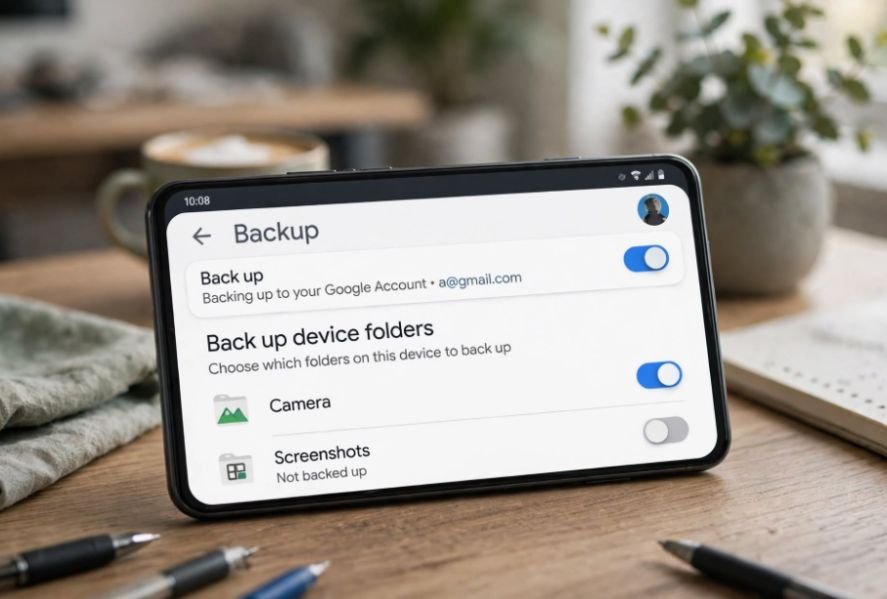
Step 4: Find Back Up Device Folders
Tap Back up device folders. You’ll see eligible folders containing images from screenshots, downloads, messaging apps, and other sources.
Step 5: Disable Screenshot Backup
Locate Screenshots and turn off its backup switch. This prevents future uploads from that folder while leaving your existing local screenshots intact.
Step 6: Review Automatic Folder Backup
Check the Backup all device folders option. If enabled, Google Photos may automatically upload images from newly created folders.
I recommend disabling this option when you want complete control over which folders sync.
How to Stop Samsung Galaxy Screenshots From Backing Up to Google Photos
Samsung Galaxy phones sometimes require a different approach because their screenshot storage location may interfere with folder-specific backup settings.
Check the Samsung Screenshot Storage Location
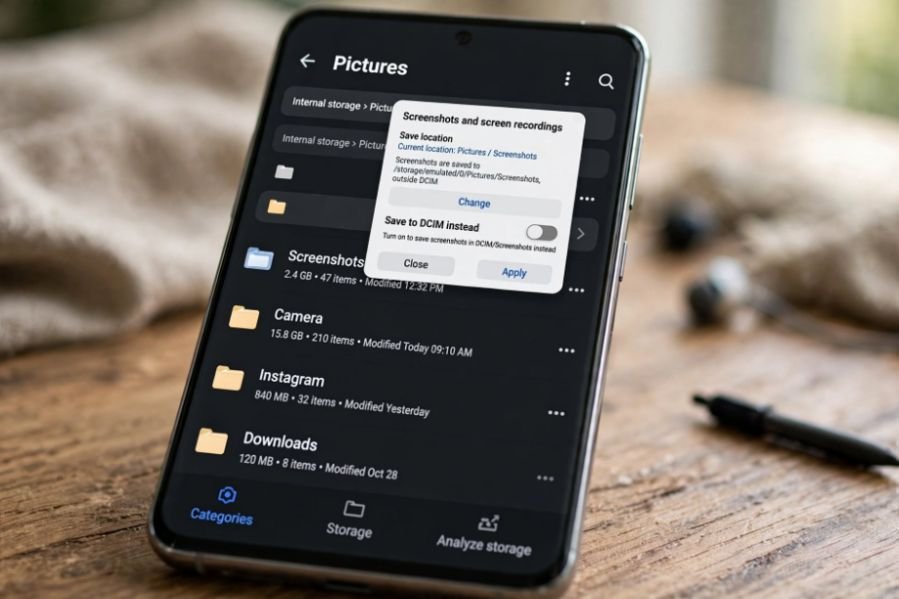
Open the My Files app and navigate to Internal storage. Find the DCIM folder and check whether it contains Screenshots.
If screenshots appear inside DCIM, Google Photos may include them in your camera backup.
Change Where Samsung Saves Screenshots
On supported Samsung models, open Settings and select Advanced features.
Tap Screenshots and screen recordings, then look for Save screenshots in.
Choose a separate folder outside DCIM (Digital Camera Images), such as Pictures/Screenshots or a custom folder named My Screenshots in internal storage.
After changing the save location, return to Google Photos and disable backup for that folder.
Some older Galaxy models and One UI versions don’t support changing the screenshot destination. In that case, you may need to manually move screenshots using a file manager. This won’t necessarily prevent future screenshots from uploading.
How Do I Stop Screenshot Backup on Google Pixel Phones?
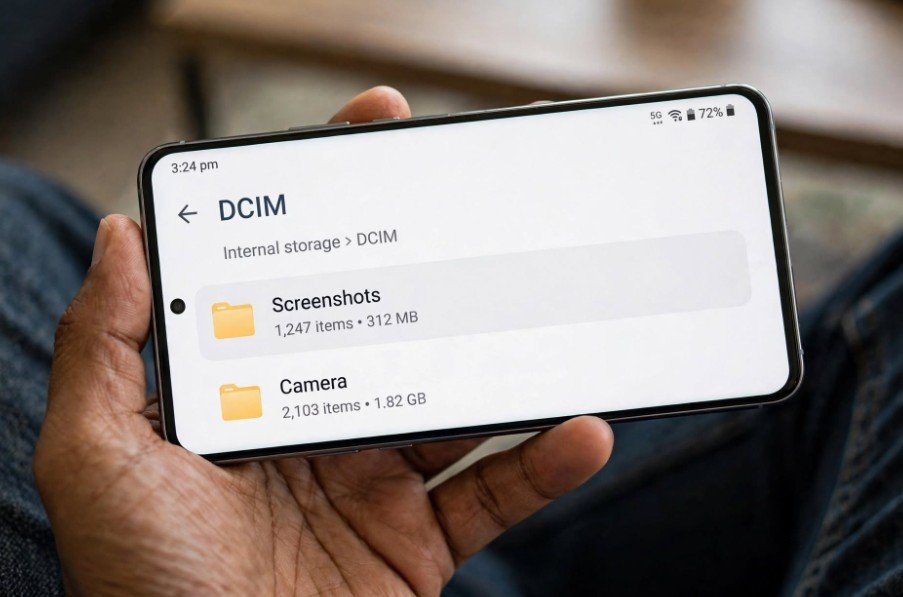
Google Pixel users can usually manage screenshots through the same Android device-folder settings.
Open Google Photos, navigate to Backup, and select Back up device folders.
If Screenshots appears separately, disable its backup switch.
If the folder is missing, check the screenshot’s actual location using Files by Google or another file manager.
Pixel and Samsung phones don’t necessarily use identical screenshot storage structures, so I recommend checking the folder location rather than assuming the same solution works on every device.
Why Is My Screenshots Folder Missing in Google Photos?
Sometimes the Google Photos Screenshots folder is not showing under backup settings.
First, open your phone’s file manager and locate a recently captured screenshot.
Next, open Google Photos and navigate to Collections, then On this device. Check whether the Screenshots folder appears.
If screenshots are stored inside DCIM, they may not appear as a separate backup option.
You should also update Google Photos through the Google Play Store and review the Back up all device folders setting.
Remember that disabling mobile-data backup alone doesn’t prevent screenshots from uploading later over Wi-Fi.
How Do I Delete Screenshots Already Backed Up to Google Photos?
Disabling screenshot backup stops future uploads from an excluded folder, but previously uploaded screenshots remain in your Google account.
If you want to remove unnecessary images, open Google Photos and use Search to find Screenshots. Depending on the interface, you may also see a Screenshots category.
Select the images you want to manage.
Move Screenshots to Archive
If you only want to clean up your main photo feed, select the screenshots and use Move to Archive.
Archived screenshots remain accessible in Google Photos and still count toward your storage allowance.
Delete Screenshots From Cloud Storage
If you want to delete cloud copies while keeping screenshots on your phone, proceed carefully.
First, turn off backup on every device where you want to preserve the images.
Visit Google Photos on the web using your computer or mobile browser and delete the selected screenshots.
Afterward, reconnect your phone to Wi-Fi, reopen Google Photos, and verify that your local screenshots remain available.
Be careful when enabling backup again. Google warns that previously deleted files may upload again or that device copies may be affected by synchronization.
How Can I Check Whether Google Photos Is Still Backing Up Screenshots?
After changing the settings, I recommend running a simple test.
Similarly, reviewing automatic app update preferences can help you maintain greater control over background activity on your smartphone. Samsung users can learn how to turn off automatic app updates on a Samsung phone.
Take a new screenshot and open it in Google Photos. Select the image and check its details for backup status.
Next, visit Google Photos through a web browser and check whether the new screenshot appears in your cloud library.
Remember that seeing an image inside the mobile app doesn’t automatically mean it has been uploaded.
Finally, take a regular camera picture and confirm that its backup still works.
This ensures you’ve stopped unwanted screenshot uploads without interrupting protection for your important photos.
Frequently Asked Questions
1. Can I Stop Screenshot Backup Without Turning Off Google Photos?
Yes. On compatible Android devices, you can disable backup for the Screenshots folder while keeping automatic camera backup enabled. This allows you to protect important pictures without uploading every screenshot.
2. Why Are My Samsung Screenshots Still Uploading?
Your Samsung phone may store screenshots inside DCIM, causing Google Photos to treat them as camera images. Changing the screenshot save location may resolve this issue on supported models.
3. Does Turning Off Screenshot Backup Delete My Screenshots?
No. Disabling folder backup doesn’t automatically delete screenshots already saved locally or uploaded to your Google account. Existing cloud copies must be managed separately.
4. Can I Keep Screenshots on My Phone but Delete Them From Google Photos?
Yes, but you need to follow Google’s cloud-only deletion procedure carefully. Turn off backup on affected devices before deleting cloud copies through the website, and verify that your local files remain intact.
Final Thoughts
I prefer keeping my Google Photos library organized without sacrificing automatic backups for important memories. Learning how to stop Google Photos from backing up screenshots gives me greater control over cloud storage and helps prevent unnecessary uploads.
For most Android phones, disabling the Screenshots folder backup is enough. Samsung users may need to change the screenshot storage location, while Pixel users should confirm how their device organizes screenshots.
I recommend checking your backup settings occasionally, especially after switching smartphones or installing software updates. A few simple adjustments can keep your photo library cleaner while ensuring the pictures you care about remain protected.