I know how frustrating it can be when I need to print an important document from my iPhone, but my printer doesn’t support AirPrint. Whether it’s a shipping label, school assignment, PDF, or work document, replacing a perfectly functional printer seems unnecessary.
Fortunately, learning how to print from an iPhone without an AirPrint-compatible printer doesn’t require expensive equipment or complicated technical knowledge. Several alternatives allow you to connect an iPhone to older HP, Canon, Epson, and Brother printers.
In this guide, I’ll explain five practical methods, including manufacturer apps, Wi-Fi Direct, computer-based printing, and cloud services, along with solutions for common connection problems.
Can You Print From an iPhone Without AirPrint?
Yes, you can print from an iPhone without AirPrint if your printer supports another compatible printing method.
Apple AirPrint lets you print wirelessly without installing additional drivers. However, many older printers lack this feature.
I recommend checking your printer’s wireless capabilities before choosing a solution. A compatible printer app may handle printing directly, while Wi-Fi Direct allows supported printers to connect without a router.
For older USB-only printers, using a Windows PC or Mac is often the easiest alternative.
How to Print From iPhone Without AirPrint Using 5 Methods
Method 1: How Do I Print From My iPhone Using the Printer Manufacturer’s App?
Most major printer manufacturers provide dedicated iOS applications that can communicate with compatible printers without relying on AirPrint.
First, open the App Store and download the application that matches your printer.
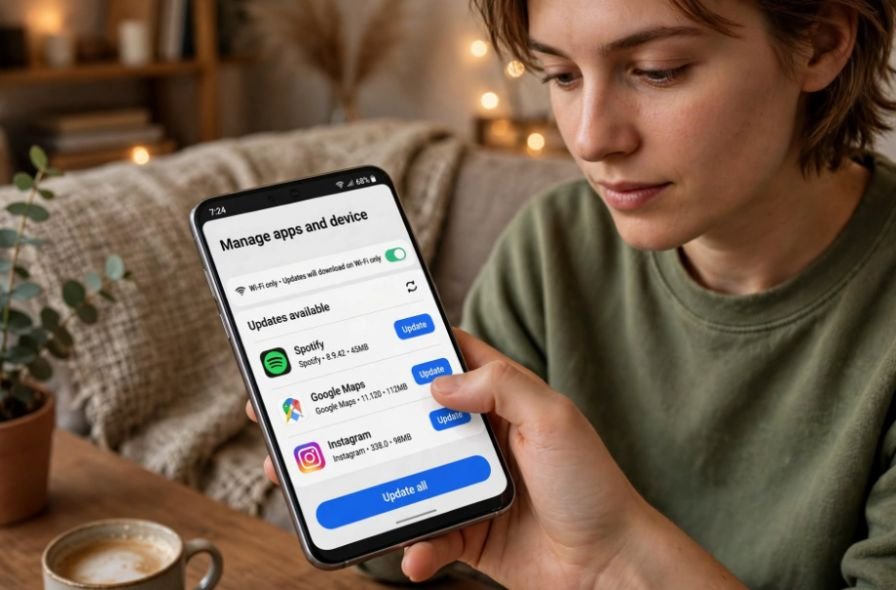
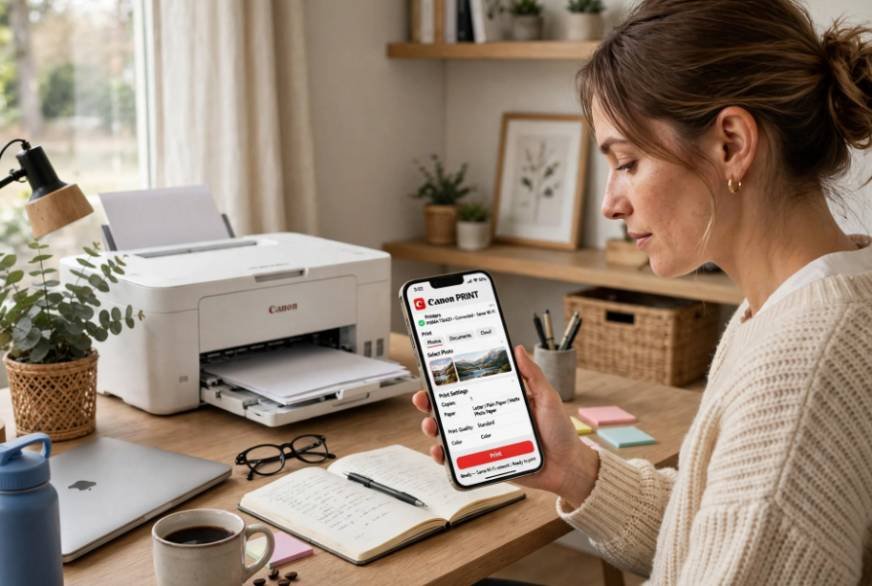
For HP printers, use the HP app, previously called HP Smart. Canon users can install Canon PRINT, while Epson owners can try Epson iPrint or Epson Smart Panel. Brother offers Brother Mobile Connect and Brother iPrint&Scan for supported models.
Next, connect your iPhone and printer to the same Wi-Fi network. Open the manufacturer’s application and follow the instructions to add or discover your printer.
Once connected, select a photo or document within the app, adjust the available print settings, and choose Print.
I recommend starting with this method because it generally requires no additional hardware and supports everyday tasks like printing PDFs, photos, and documents.
If you regularly print photos from your phone, it’s also worth managing unnecessary image uploads by learning how to stop Google Photos from backing up screenshots.
Method 2: How Can I Print From iPhone Using Wi-Fi Direct Without a Router?
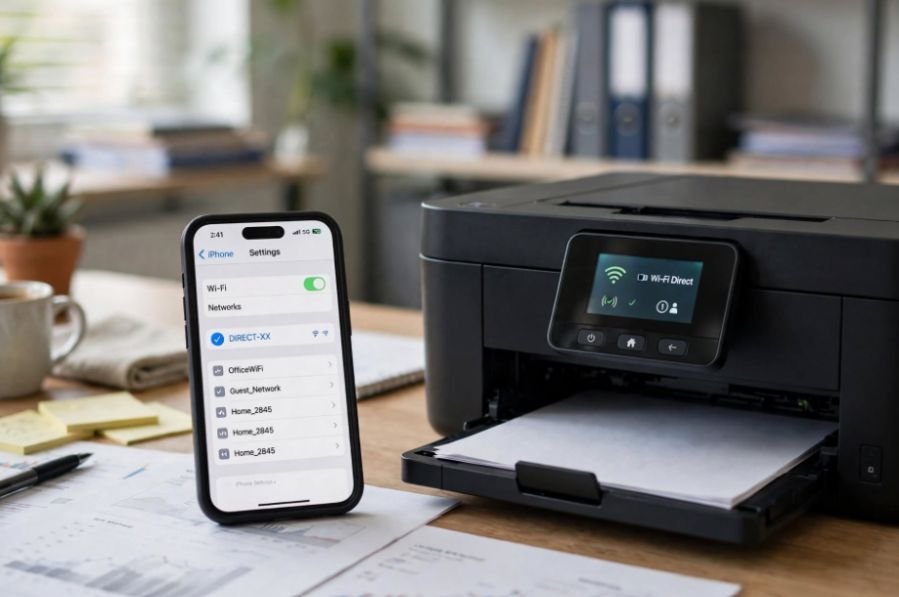
Wi-Fi Direct lets compatible printers establish a direct wireless connection with your iPhone without requiring a traditional home Wi-Fi router.
I find this option useful when internet access is unavailable.
Start by opening your printer’s control panel and enabling Wi-Fi Direct under its network settings.
Next, open Settings > Wi-Fi on your iPhone and look for a network containing your printer’s model number or a name such as DIRECT-XX.
Select that network and enter the Wi-Fi Direct password, usually available on the printer’s display or network information page.
After connecting, open your manufacturer’s printing app, select your document, and send it to the printer.
Remember that Wi-Fi Direct requires compatible hardware and mobile printing software. Connecting to the printer’s wireless network alone doesn’t guarantee successful printing.
Method 3: How Do I Print From My iPhone Using a Windows PC or Mac?
If your printer only supports a USB connection, a computer can bridge the gap.
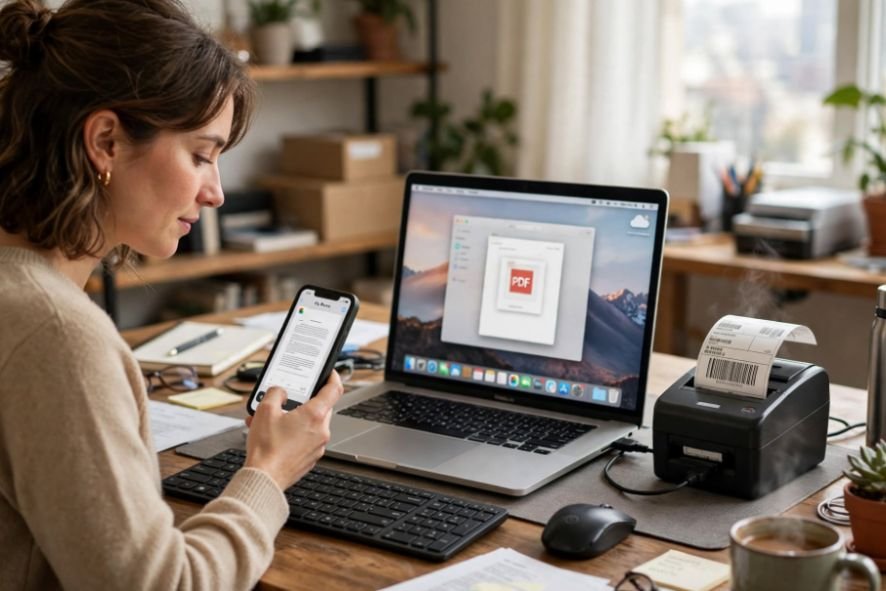
Connect your printer to a Windows PC or Mac using its USB cable. Confirm that the computer recognizes the printer and can print a test document.
On your iPhone, open the file you want to print and tap Share.
Transfer the document through email, cloud storage, or AirDrop when using a Mac.
If you regularly use multiple Apple devices, you may also want to learn how to stop iPhone photos from syncing to iPad to manage automatic content synchronization.
Open the transferred file on your computer and select Print.
For Mac users who want a more direct solution, Printopia offers another option.
This desktop application shares printers connected to your Mac with compatible iPhones, allowing them to appear through the iPhone’s built-in printing interface.
You’ll need to install Printopia on your Mac, configure the printer, and keep the Mac running and reachable over the network.
Check compatibility with your current macOS and iOS versions before purchasing the software.
Method 4: Can I Use Third-Party Printing Apps or Cloud Services?
Third-party printing applications can provide additional options when manufacturer software doesn’t support your printer.
Some applications use computer-based print servers to communicate with older hardware.
For example, ezeep Blue provides cloud-based printing services through supported mobile apps and configured printing environments.
To use such a service, register an account, configure a supported printer connection or connector, and follow the provider’s instructions for submitting print jobs.
I recommend reviewing subscription costs, printer compatibility, and document privacy before choosing a third-party service.
Cloud printing typically requires internet access, and services designed for business environments may be unnecessarily complicated for occasional home printing.
Method 5: Can I Print From iPhone Through a Router’s USB Port?
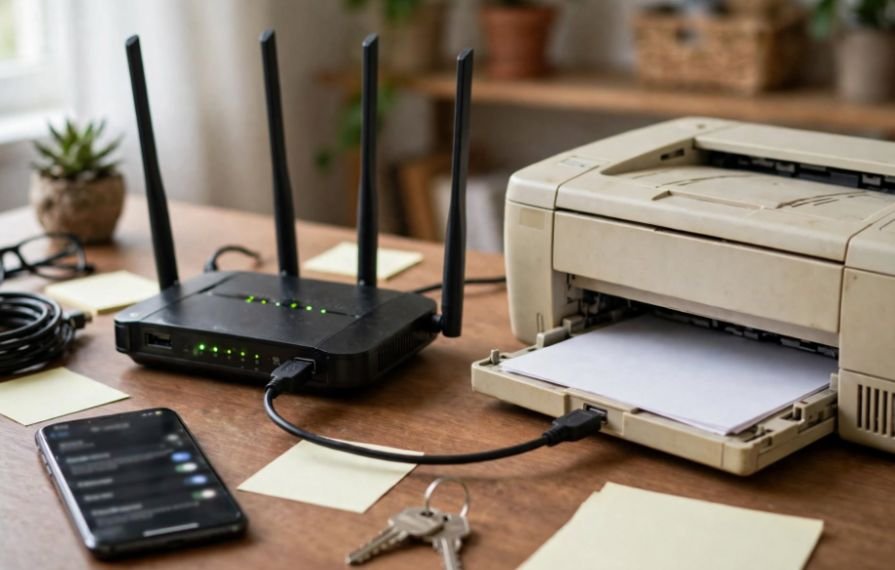
Some wireless routers include USB ports that support network printer sharing.
If your router offers this feature, connect your USB printer to the router and enable its print-server functionality through the router’s administration settings.
Your printer may then become accessible to compatible devices on the network.
However, connecting a printer to a router doesn’t automatically make it AirPrint-compatible.
You may still need a compatible printing application, an AirPrint-enabled print server, or a computer-based bridge.
I recommend checking your router’s manual before attempting this method because many USB ports only support storage devices rather than printers.
How Do I Fix an iPhone That Cannot Find My Printer?
If your iPhone displays “No AirPrint Printers Found,” the issue might involve printer compatibility or network connectivity.
First, verify that your printer is turned on and connected to the intended network. Make sure your iPhone uses the same network when required.
Next, restart your printer, iPhone, and Wi-Fi router.
You should also check Settings > Privacy & Security > Local Network to confirm that the manufacturer’s app has permission to discover nearby devices, if that setting appears.
If the printer still isn’t detected, update its firmware and reinstall the compatible printing app if necessary.
For USB-only printers, verify that the printer works from your computer before troubleshooting mobile printing software.
Frequently Asked Questions
1. Can I Print From My iPhone Without Wi-Fi?
Yes. A compatible printer with Wi-Fi Direct can establish a direct connection without a home router or internet service. You can also transfer documents to a computer connected to a USB printer.
2. Can I Connect My iPhone to a Printer Through Bluetooth?
Some specialized printers support Bluetooth printing through their manufacturer apps. However, many standard printers use Bluetooth only for setup and require Wi-Fi for actual printing.
3. Can I Print From iPhone to an Old Printer Using a USB Cable?
A standard Lightning or USB-C adapter generally won’t enable direct printing to conventional USB printers. Using a computer or compatible printing bridge is usually more reliable.
4. What Is the Easiest Way to Print From iPhone Without AirPrint?
The easiest option is usually the manufacturer’s official printing app, provided your printer supports it. Otherwise, transferring the document to a computer offers a straightforward alternative.
Final Thoughts
I’ve found that understanding how to print from iPhone without AirPrint is mostly about choosing the right connection method for your existing equipment.
Manufacturer apps work well with compatible wireless printers, while Wi-Fi Direct offers flexibility when a router isn’t available. Printopia, cloud printing platforms, and computer-based printing provide alternatives for older hardware.
Before buying another printer, I recommend checking your printer’s model number, supported connections, and available software.
With the right setup, you can continue printing important documents, PDFs, photos, and shipping labels from your iPhone without unnecessary spending.