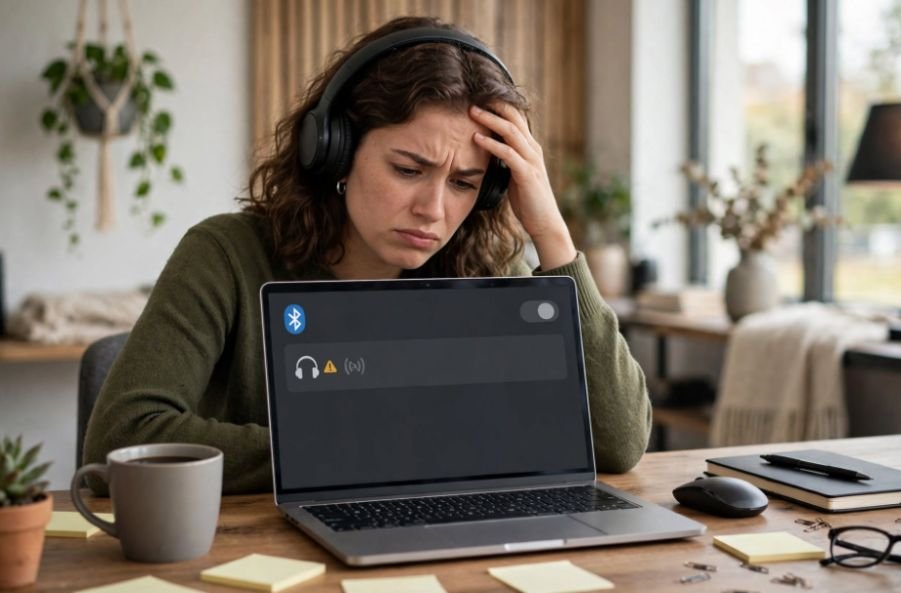
Bluetooth headphones make working, gaming, and streaming more convenient, but constant audio interruptions can quickly become frustrating. If you’re searching for how to fix Bluetooth headphones cutting out on Windows 11, the problem often involves wireless interference, outdated drivers, power management, or Bluetooth audio settings.
I’ve found that starting with simple connection checks before changing advanced settings makes troubleshooting much easier. Whether you’re experiencing choppy music, delayed sound, or dropped audio during video meetings, I’ll explain how to restore a more reliable Bluetooth connection.
Why Do Bluetooth Headphones Keep Cutting Out on Windows 11?
Bluetooth headphones depend on a stable wireless connection. When Windows struggles to maintain that connection, you may experience audio stuttering, brief silence, or complete disconnections.
Common causes include outdated Bluetooth drivers, low battery levels, interference from 2.4 GHz Wi-Fi networks, and Windows power-saving features.
Bluetooth audio profiles can also affect sound quality. Some headphones switch between stereo playback and hands-free communication modes when applications activate their microphones.
Before changing system settings, charge your headphones, restart your computer, move closer to the Bluetooth adapter, and temporarily disconnect unnecessary wireless accessories.
How to Fix Bluetooth Headphones That Keep Cutting Out on Windows 11
If your Bluetooth headphones keep cutting out on Windows 11 despite basic troubleshooting, try these solutions individually and test your audio after each change.
1. Disable Hands-Free Telephony to Fix Bluetooth Audio Stuttering
Windows may use different Bluetooth audio profiles for music playback and voice communication. Switching to hands-free mode can reduce audio quality or cause compatibility problems with certain devices.
To disable this feature, press Windows + R, type control, and press Enter.
Navigate to Hardware and Sound > Devices and Printers. If Windows redirects you to Settings, look for More devices and printer settings.
Right-click your Bluetooth headphones, select Properties, and open the Services tab.
Uncheck Hands-free Telephony if available. You may also see a Remotely Controllable Device service, but disable it only when specifically troubleshooting remote-control functionality.
Click Apply, reconnect your headphones if necessary, and test the audio.
Keep in mind that disabling Hands-Free Telephony may prevent your headphone microphone from working in Zoom, Microsoft Teams, or other calling applications.
2. Disable Bluetooth Power Management Settings
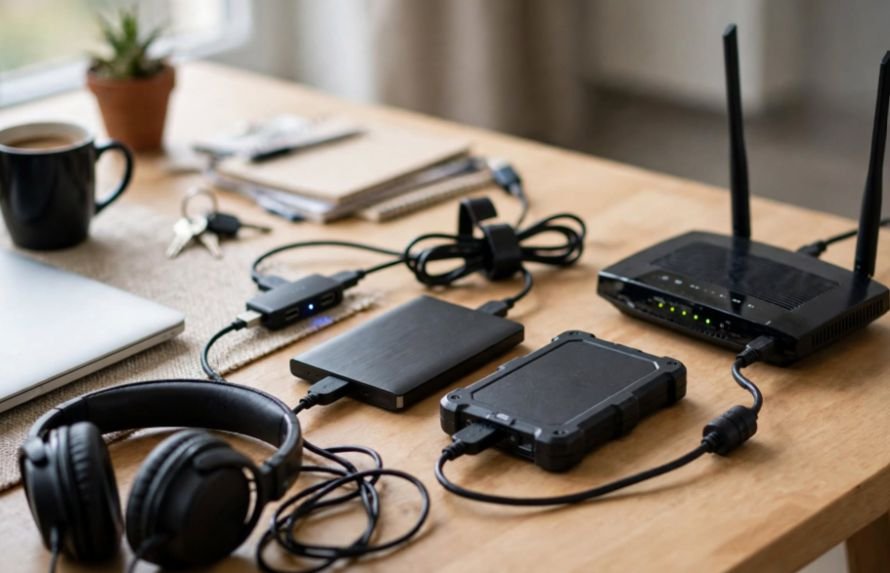
Windows sometimes reduces wireless adapter activity to conserve battery power. This can contribute to Bluetooth headphones disconnecting, especially on laptops.
Similar power-management and background activity issues can also affect laptop performance and cooling. If your laptop fan keeps running even when no applications are open, learn why your laptop fan is running when nothing is open.
Right-click Start and open Device Manager. Expand Bluetooth, right-click your main adapter, and select Properties.
Open the Power Management tab and uncheck “Allow the computer to turn off this device to save power.”
Click OK and restart your computer.
If the tab isn’t available, skip this adjustment. You can also temporarily disable Energy Saver under Settings > System > Power & battery to check whether power management is affecting connectivity.
3. Turn Off Audio Enhancements in Windows 11
Audio enhancements can sometimes interfere with Bluetooth playback and produce crackling or distorted sound.
Open Settings > System > Sound and select your Bluetooth headphones under Output.
Find Audio enhancements and set the option to Off.
Alternatively, press Windows + R, enter mmsys.cpl, and press Enter.
Under Playback, right-click your headphones, select Properties, and open the Enhancements tab if available.
Select Disable all enhancements, then click Apply and OK.
If the tab is missing, use the modern Sound settings instead. Test your headphones afterward to determine whether the audio improves.
4. Update or Reinstall Bluetooth Drivers
Outdated or corrupted drivers can cause Windows 11 Bluetooth audio stuttering, connection failures, and playback interruptions.
Open Device Manager, expand Bluetooth, and right-click your wireless adapter.
Select Update driver > Search automatically for drivers.
If Windows doesn’t find an update, check your computer manufacturer’s official support website for compatible drivers.
When the issue continues, download the appropriate replacement driver first. Then return to Device Manager, right-click the adapter, and select Uninstall device.
Leave the driver-deletion option unchecked if prompted, then restart your PC.
Windows normally attempts to reinstall the adapter driver. If it doesn’t, install the manufacturer-provided driver you downloaded.
5. Reduce Wi-Fi and USB Interference
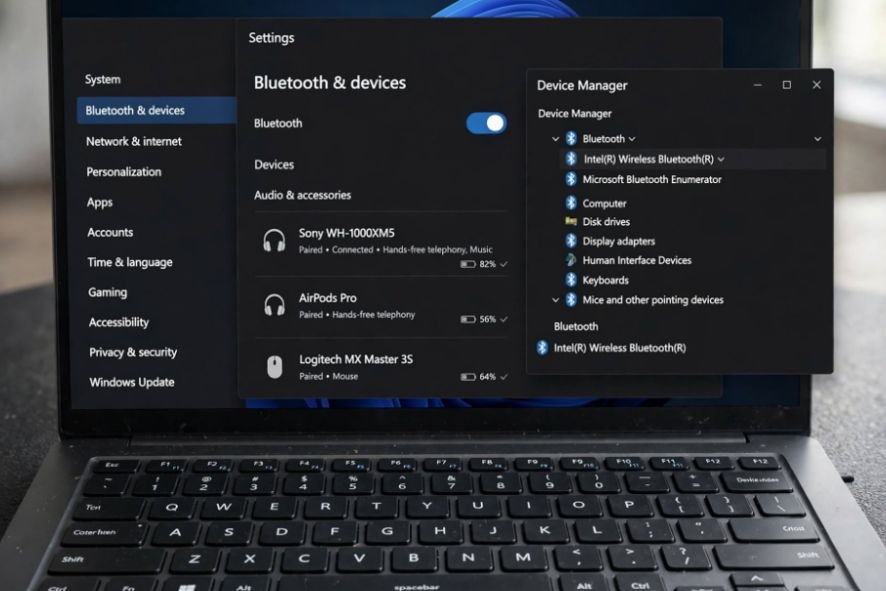
Bluetooth operates in the 2.4 GHz frequency band, which it shares with many wireless networks and electronic devices.
Similar wireless interference can also interrupt smart TV connections, causing streaming devices to lose their network connection. If your Roku TV keeps disconnecting from Wi-Fi, explore why your Roku TV keeps disconnecting from Wi-Fi.
If your Bluetooth headphones stutter when Wi-Fi is active, switch your computer to a 5 GHz or 6 GHz network if supported.
For desktop computers, verify that the external Wi-Fi/Bluetooth antenna is securely connected to the motherboard.
If you use a USB Bluetooth adapter, position it away from USB 3.x ports, external storage drives, and other potential interference sources. A short USB extension cable can help.
These adjustments may fix choppy Bluetooth audio on Windows 11 without additional software changes.
6. Remove and Pair Your Bluetooth Headphones Again
If your Bluetooth headphones are connected but the sound cuts out, the existing pairing may need to be refreshed.
Open Settings > Bluetooth & devices > Devices.
Find your headphones, select the three-dot menu, and choose Remove device.
Restart your headphones, activate pairing mode, and select Add device > Bluetooth to reconnect them.
Play music or a video for several minutes to check whether the connection remains stable.
7. Restart Bluetooth Services and Run the Troubleshooter
Windows relies on background services to maintain Bluetooth functionality.
Press Windows + R, type services.msc, and press Enter.
Locate Bluetooth Support Service, right-click it, and select Restart.
You can also open the Get Help application from the Start menu and run its Bluetooth troubleshooter.
Follow the recommended instructions and allow Windows to check for connection problems.
8. Fix Bluetooth Audio Cutting Out During Calls
Bluetooth headphones cutting out during calls may behave differently from headphones used only for music.
Applications such as Teams, Zoom, and Discord can activate the headset microphone, changing the active Bluetooth audio mode.
Open your meeting application’s audio settings and try selecting your laptop’s built-in microphone while keeping your headphones as the speaker output.
Some compatible Windows 11 PCs and headphones also support Bluetooth LE Audio. If stereo playback causes glitches while the microphone is active, switching to mono in supported LE Audio settings may improve compatibility.
9. Install Windows Updates and Check Headphone Firmware
Windows updates may include improvements to Bluetooth connectivity and audio compatibility.
Navigate to Settings > Windows Update and select Check for updates.
Install applicable updates and restart your computer.
I also recommend checking your headphone manufacturer’s official application for firmware updates, especially if the issue occurs across multiple devices.
Why Does Bluetooth Audio Keep Cutting Out After Sleep Mode?
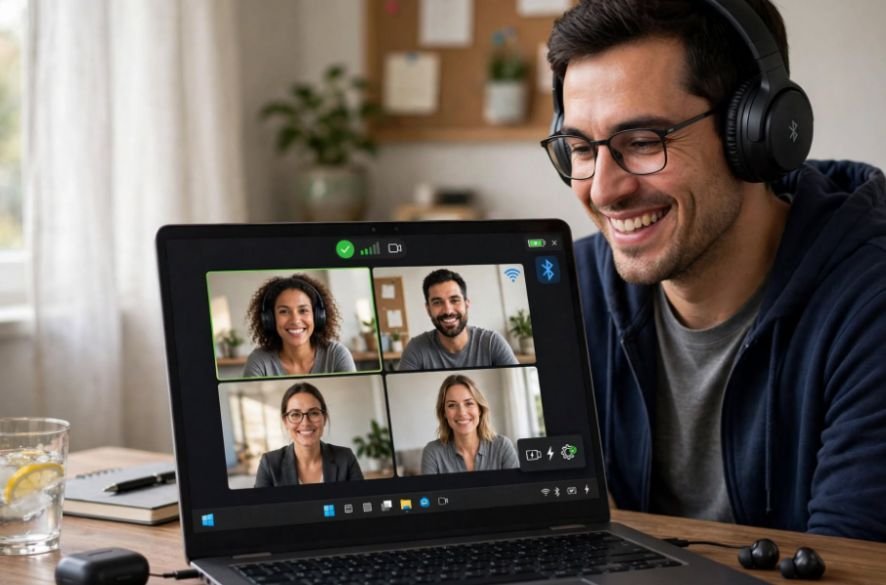
Bluetooth connections can occasionally become unstable when a laptop wakes from sleep.
If this happens, turn Bluetooth off and back on, reconnect your headphones, and check for updated wireless drivers.
Reviewing power-management settings can also help prevent repeated disconnections after sleep.
How Can I Fix Bluetooth Audio Lag on Windows 11?
Bluetooth audio lag occurs when sound plays later than the corresponding video or action. Unlike stuttering, it doesn’t necessarily involve interrupted playback.
Try closing unnecessary applications, updating Bluetooth drivers, and testing another media player.
For gaming, remember that wireless latency varies depending on your Bluetooth hardware and headphones.
Frequently Asked Questions
1. Why Do My Bluetooth Headphones Keep Cutting Out Every Few Seconds?
Frequent audio interruptions may result from wireless interference, low battery levels, outdated drivers, or power-management settings. Charge your headphones, reconnect Bluetooth, and test the connection near your computer.
2. Can 2.4 GHz Wi-Fi Cause Bluetooth Headphones to Stutter?
Yes. Bluetooth and 2.4 GHz Wi-Fi share wireless spectrum. Switching to a 5 GHz or 6 GHz network may reduce interference and improve audio stability.
3. Can I Fix Bluetooth Headphones Without Reinstalling Drivers?
Yes. Restart Bluetooth, disable audio enhancements, adjust power settings, and reconnect your headphones to solve the problem without reinstalling drivers.
4. What Is the Easiest Way to Fix Bluetooth Headphones Cutting Out on Windows 11?
If you’re wondering how to fix Bluetooth headphones cutting out on Windows 11 without advanced troubleshooting, start by charging your headphones, restarting Bluetooth, removing wireless interference, and pairing the device again.
Final Thoughts
I’ve learned that the best way to handle persistent Bluetooth audio problems is to identify the cause instead of changing multiple Windows settings at once.
When troubleshooting Bluetooth headphones cutting out on Windows 11, start with simple connectivity checks before moving to hands-free audio settings, power management, and driver updates.
With the right adjustments, you can enjoy more consistent music playback, smoother video meetings, and reliable wireless audio throughout your day.