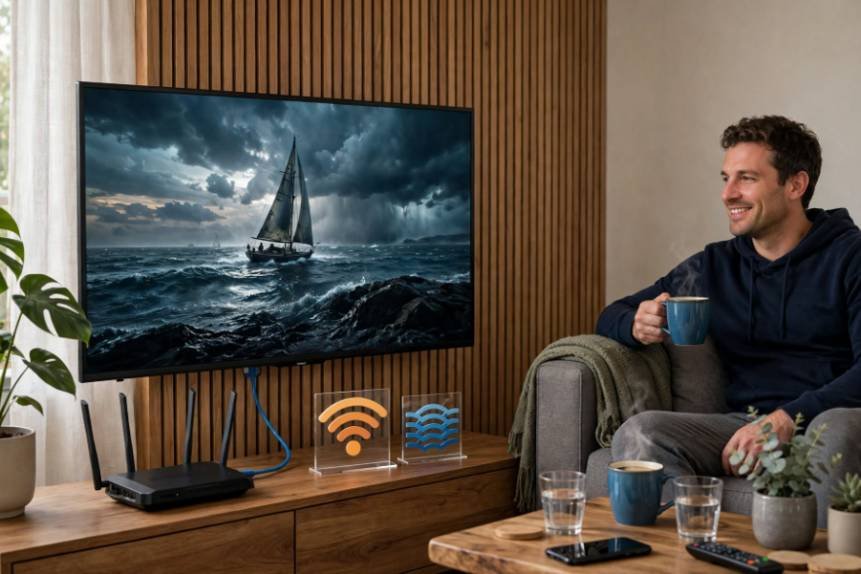
If you’re wondering why your Roku TV keeps disconnecting from wifi, you’re probably tired of buffering movies, interrupted Netflix sessions, or repeatedly reconnecting your television. I’ve found that weak wireless signals, router interference, network congestion, and outdated connection settings are common causes.
Even a fast internet plan cannot guarantee uninterrupted streaming when your television struggles to communicate with the router. Fortunately, most connection problems don’t require expensive repairs. I’ll walk you through practical solutions to help restore a stable Roku TV internet connection.
Why Does My Roku TV Keep Losing Its Wi-Fi Connection?
A Roku TV can lose its wireless connection when the signal becomes unstable, or its saved network settings stop working correctly. Sometimes, the problem originates from your router rather than the television.
Thick walls, metal objects, furniture, and nearby electronics can weaken wireless signals. Microwaves, baby monitors, and other devices operating on the 2.4 GHz frequency may create interference.
Network congestion also matters. When multiple household devices stream videos, download large files, or play online games, your router may struggle to manage traffic.
Some routers use band steering to move devices automatically between 2.4 GHz and 5 GHz networks. Although this feature usually improves connectivity, compatibility issues can occasionally cause interruptions.
An outdated or corrupted network profile, software glitch, or temporary internet service outage may also explain repeated disconnections.
Background activity can also affect other connected devices, including laptops. If your laptop fan keeps running even when no applications are open, learn why your laptop fan keeps running when nothing is open.
How to Fix a Roku TV That Keeps Disconnecting From Wi-Fi
Before changing advanced router settings, I recommend following these troubleshooting methods in order.
1. Restart Your Roku TV and Wi-Fi Router
A complete restart can clear temporary software and connection problems.
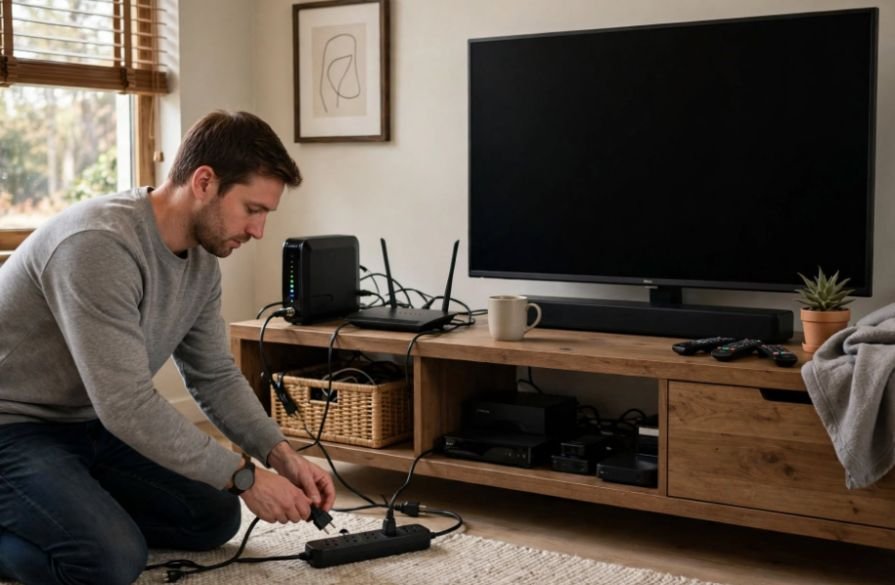
Unplug your Roku TV, modem, and router from their power outlets. Wait approximately 30 seconds, reconnect your modem first, and allow it to establish an internet connection. Then reconnect your router and television.
If the problem continues, you can try a longer three-to-five-minute power cycle, although that extended waiting period usually isn’t necessary.
Alternatively, restart your Roku TV through Settings > System > Power > System restart. Some models display System restart directly under System.
2. Check Your Roku TV’s Wi-Fi Signal Strength
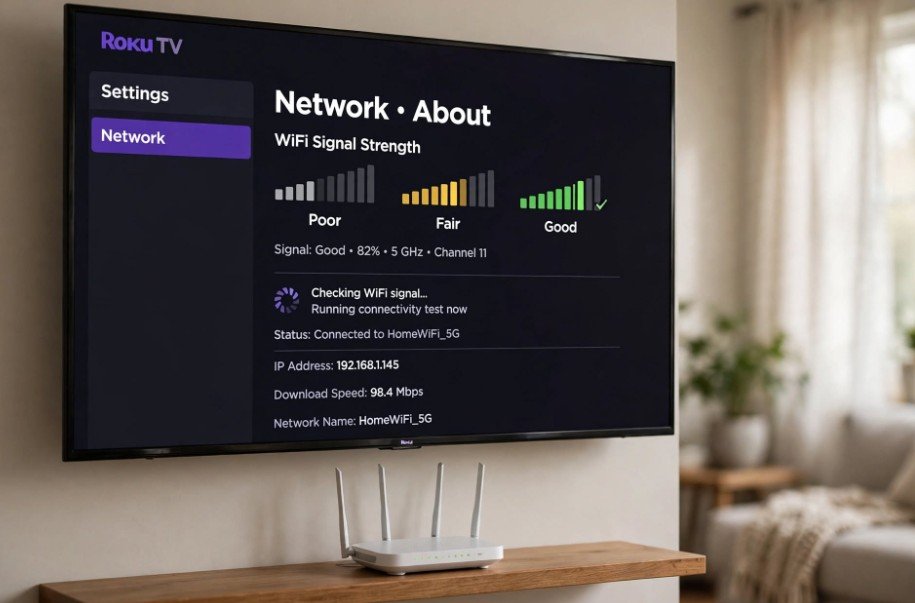
Weak wireless coverage is one of the most common reasons Roku TV keeps losing internet connection.
Open Settings > Network > About and examine the signal strength. If it displays Poor or Fair, your television may struggle to maintain a reliable connection.
Move your router closer if possible and avoid placing it inside cabinets or behind large furniture.
Positioning the router in a central, elevated location often improves coverage. However, avoid placing it directly against the television or other electronics that might create interference.
There’s no universal rule requiring routers to remain six feet away from Roku TVs. Instead, experiment with placement and test the connection after each adjustment.
3. Reset Your Roku TV’s Network Connection
If your Roku TV is not staying connected to Wi-Fi, its saved connection information may need refreshing.
Navigate to Settings > System > Advanced system settings > Network connection reset > Reset connection.
Your television will restart and clear its saved network connection settings.
After restarting, select Settings > Network > Set up connection > Wireless. Choose your network and enter your Wi-Fi password again.
This method can resolve configuration problems without deleting your installed streaming apps.
4. Switch Between 2.4 GHz and 5 GHz Wi-Fi
If your router supports both wireless bands, switching frequencies may improve stability.
The 2.4 GHz band generally provides better coverage through walls, while 5 GHz offers faster speeds and often experiences less interference at shorter distances.
Wireless devices can also experience interference when operating around the 2.4 GHz frequency. If your Bluetooth headphones keep cutting out while connected to a Windows 11 computer, follow these steps to fix Bluetooth headphone connectivity issues.
If your television sits near the router, try connecting to the compatible 5 GHz network.
For televisions farther away, 2.4 GHz may provide a more dependable connection.
Remember that supported frequencies vary by Roku TV model.
5. Disable Router Band Steering Temporarily
Band steering automatically directs compatible devices toward different wireless frequencies.
If your Roku TV repeatedly disconnects while other devices remain connected, this feature may be worth investigating.
Open your router’s administration settings and look for Smart Connect, band steering, or a similar option.
If supported, temporarily separate your 2.4 GHz and 5 GHz networks into different names. Connect your Roku TV to one band and monitor its performance.
I recommend restoring your original settings if the change doesn’t improve reliability.
6. Change Your Router’s Wireless Channel
Crowded Wi-Fi channels can cause interference, particularly in apartment buildings and densely populated neighborhoods.
For 2.4 GHz connections, channels 1, 6, and 11 are commonly recommended in North America.
For compatible 5 GHz connections, non-DFS channels 36–48 or 149–165 may help when a Roku device cannot detect networks using certain DFS channels.
Access your router’s wireless settings to test another supported channel. Channel availability and compatibility depend on your router and Roku model.
If you’re unsure about these settings, contact your internet service provider before making changes.
7. Update Your Roku TV Software
Software glitches can occasionally interfere with wireless connections.
Navigate to Settings > System > Software update > Check now.
Install available updates and restart your television afterward.
If your Roku TV keeps disconnecting after an update, reset its network connection and check whether other household devices experience similar problems.
Avoid assuming that a recent update caused the issue without further testing.
8. Test Your Connection Using a Mobile Hotspot
When your Roku TV disconnects but other devices work normally, a smartphone hotspot can help identify the source.
Enable your phone’s hotspot, then connect your Roku TV through Settings > Network > Set up connection.
If streaming works consistently through the hotspot, your home router or its configuration becomes a more likely cause.
If the television disconnects from both networks, investigate its software, wireless hardware, or environmental interference.
Keep the test brief to avoid unnecessary mobile data charges.
9. Consider Roku’s Hidden Network Ping Setting Carefully
Some online troubleshooting guides describe a hidden Roku menu accessed by pressing Home five times, followed by Fast Forward, Play/Pause, Rewind, Play/Pause, and Fast Forward.
On certain software versions, diagnostic menus may include network ping controls.
However, disabling network pings is not a standard recommended solution. It may affect connection monitoring without fixing the underlying wireless problem.
I recommend leaving undocumented diagnostic settings unchanged unless Roku Support specifically advises otherwise.
10. Switch to Ethernet for More Reliable Streaming
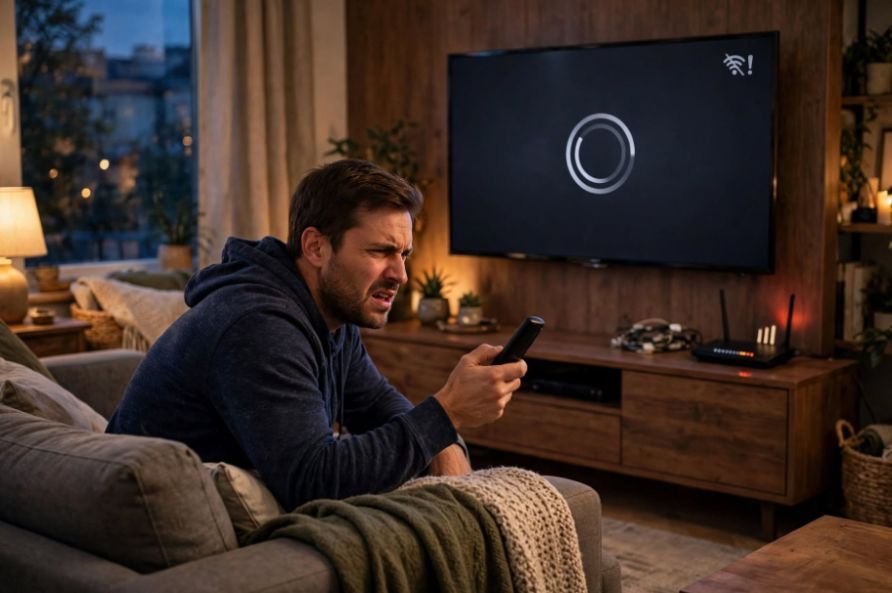
If wireless interference continues, a wired Ethernet connection may offer better stability.
Check whether your Roku TV has a built-in Ethernet port. If available, connect an Ethernet cable directly between your television and router.
A wired connection eliminates wireless interference and band-switching problems, although it cannot prevent internet service outages.
If your model doesn’t support Ethernet, a properly positioned mesh Wi-Fi system may be another option.
Why Does My Roku TV Disconnect When Turned Off?
Some Roku TVs disconnect from Wi-Fi during standby and reconnect when powered on. A brief delay may be normal, but repeated connection failures can indicate a problem.
Check Settings > System > Power for Fast TV Start if your model supports it. Test whether changing this setting affects reconnection.
Restarting your router and installing available software updates may also help.
What Do Common Roku Wi-Fi Error Codes Mean?
Roku error codes can help identify connection problems.
Error 009 generally indicates that the television connects to the router but cannot access the internet. Error 014 indicates a wireless connection failure, while error 017 points to weak signal strength.
Error 016 may appear when a streaming channel loses its network connection. Error 018 indicates insufficient internet bandwidth.
Check the exact error before troubleshooting because each requires a slightly different approach.
Frequently Asked Questions
1. Why Does My Roku TV Keep Disconnecting From WiFi Even With a Strong Signal?
If you’re asking why your Roku TV keeps disconnecting from wifi despite good signal strength, router congestion, software problems, band steering, or internet service interruptions may be responsible. Try resetting the network connection and testing another Wi-Fi band.
2. Why Does My TCL Roku TV Keep Disconnecting From Wi-Fi?
TCL Roku TVs can experience connection problems because of interference, router compatibility, or outdated network settings. Restart your television and router, check signal strength, and reconnect to Wi-Fi.
3. Will Factory Resetting My Roku TV Fix Wi-Fi Problems?
A factory reset may resolve persistent software-related problems, but it won’t fix poor wireless coverage or router failures. Try a network connection reset first. A factory reset removes your settings and requires you to set up the television again.
4. How Can I Stop My Roku TV From Disconnecting Every Day?
Keep your software updated, improve router placement, reduce wireless interference, and avoid unnecessary network congestion. If possible, use Ethernet for a more consistent connection.
Final Thoughts
When troubleshooting why my Roku TV keeps disconnecting from wifi, I always recommend starting with the simplest solutions before adjusting advanced router settings.
A proper restart, stronger wireless coverage, or network reset often restores reliable connectivity. If those steps fail, testing a different Wi-Fi band, router channel, or mobile hotspot can help identify the underlying problem.
With a little troubleshooting, you can reduce frustrating interruptions and enjoy smoother streaming on your Roku TV.