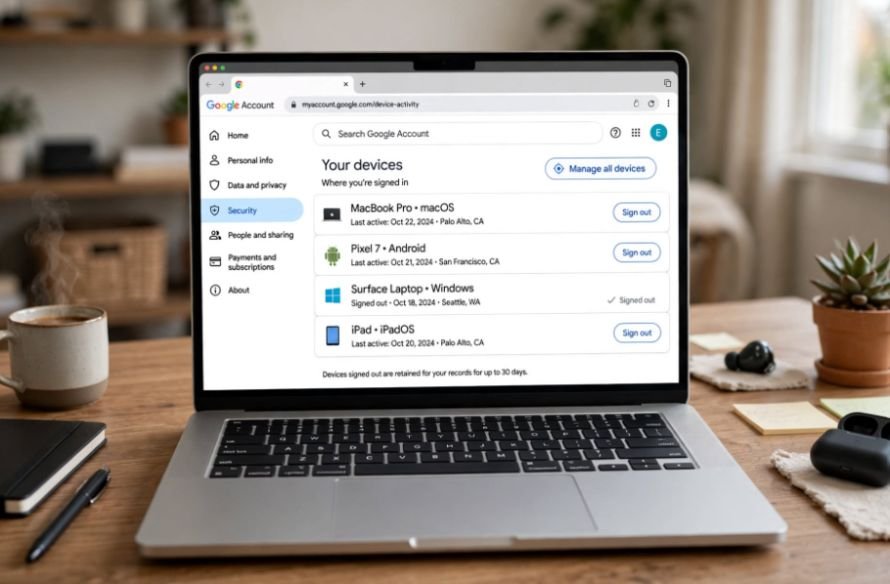
Have you ever checked your Google Account and discovered an old smartphone, laptop, or tablet still listed among your connected devices? I’ve noticed that many people forget to disconnect devices after upgrading their phones or switching computers. Although these old connections may seem harmless, some could still have access to personal information.
Fortunately, learning how to remove old devices from a Google account takes only a few minutes. You can remotely sign out of unused devices through Google’s security settings without physically accessing them.
In this guide, I’ll explain how to disconnect old devices using a computer, Android phone, or iPhone. I’ll also cover device-history cleanup, Google Play settings, and ways to protect your account from unauthorized access.
Why Should You Remove Old Devices From Your Google Account?
Every time you sign in to Gmail, Google Drive, YouTube, or another Google service, your account may record the device or session.
Over time, this history can include devices you’ve sold, donated, replaced, or used temporarily.
I recommend reviewing these connections because an active session on an unfamiliar device could expose sensitive information.
Managing the information stored in your Google Account is equally important, especially when automatic photo backups consume unnecessary cloud storage. Learn how to stop Google Photos from backing up screenshots to keep unwanted images from filling your storage.
Removing unnecessary access helps protect your emails, stored documents, contacts, and other account information. It also makes suspicious sign-ins easier to identify.
However, an old device appearing in your account doesn’t automatically mean someone can still access your information. Google also displays recently signed-out devices.
How to Remove Old Devices From Google Account on a Computer
The simplest approach is to use Google’s device activity dashboard. You can access it through Chrome, Microsoft Edge, Firefox, or another browser.
Step 1: Open Google Account Device Activity
Visit Google Account Device Activity and sign in.
Alternatively, open myaccount.google.com, select Security & sign-in, and find the Your devices section.
Step 2: Select Manage All Devices
Click Manage all devices to see computers, smartphones, and tablets with current or recent sessions.
Review device names and activity details carefully.
Step 3: Choose the Old Device
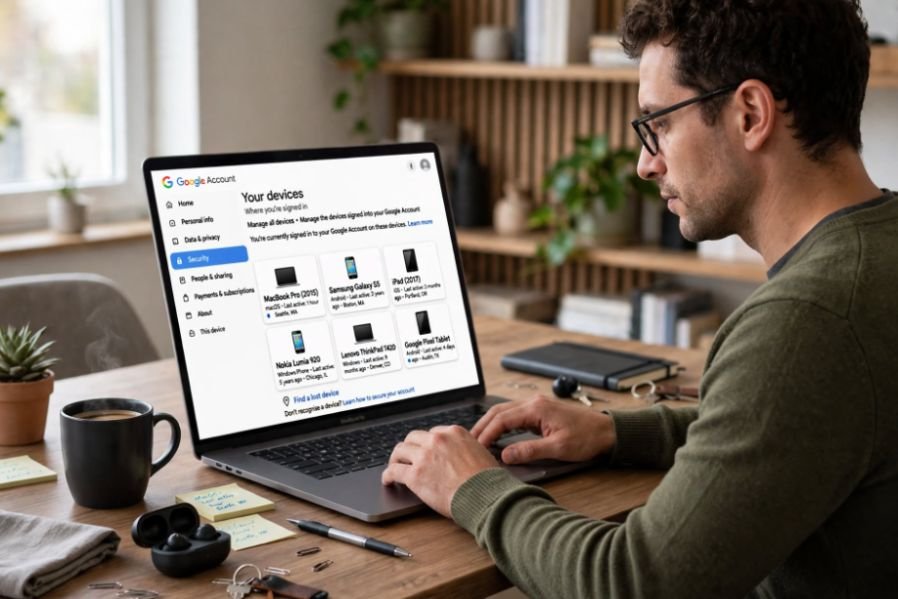
Select the device you no longer use.
Google may display its operating system, approximate location, and recent activity.
Step 4: Sign Out and Confirm
Click Sign out and confirm the action if prompted.
This revokes the selected session’s Google Account access. If multiple sessions appear under the same device name, review and sign out of each unwanted session.
This method is particularly useful when you need to remove a device from Google Account remotely.
How to Remove an Old Phone From Google Account on Android
You can also manage connected devices directly from your Android smartphone.
Open Settings and select Google, followed by Manage your Google Account.
Navigate to Security & sign-in and tap Manage all devices under Your devices.
Find your previous phone, select it, and tap Sign out. Confirm your selection to disconnect the session.
Menu names may differ slightly between Samsung Galaxy, Google Pixel, and other Android phones.
If you’re removing your account from an Android device you still own, use the phone’s account settings to select Remove account instead.
How to Remove Google Account Devices Using an iPhone
You don’t need an Android phone to disconnect unused Google devices.
On your iPhone, open Safari or Chrome and visit myaccount.google.com.
Sign in, navigate to Security & sign-in, and open Manage all devices.
Choose the unwanted device, tap Sign out, and confirm.
I prefer this browser-based method because it works even when the Google app isn’t installed.
It’s also an easy way to sign out of your Google Account on another device while traveling or using a replacement phone.
Can You Permanently Remove Old Devices From Google Account?
One common misunderstanding about how to remove old devices from a Google account is the difference between disconnecting a device and deleting its history.
Google primarily allows you to terminate account sessions.
Even after signing out, the device may continue appearing with a Signed out label.
Google typically displays devices or sessions associated with your account from the previous few weeks.
There isn’t a universal manual option to permanently erase individual device entries from this recent activity history.
If an old device remains visible, check its session status before assuming it still has access.
Why Is My Old Device Still Showing After Signing Out?
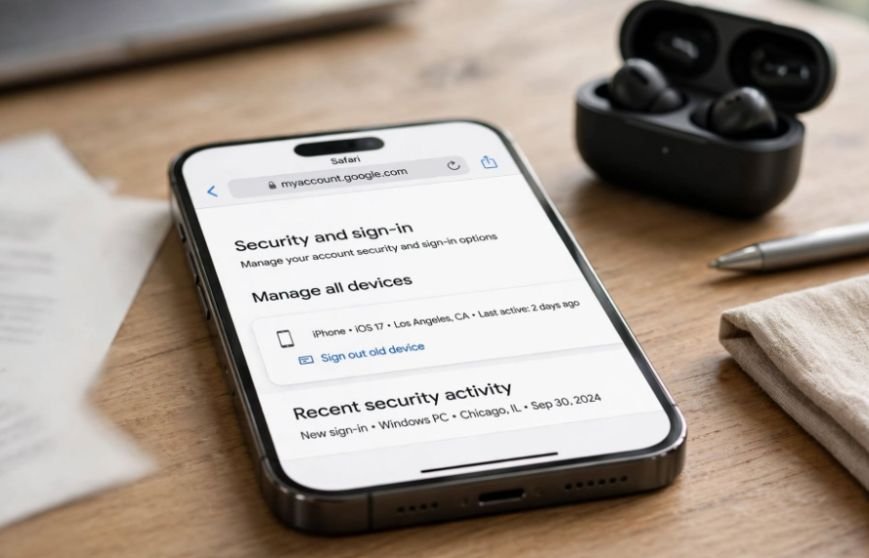
An old device may remain listed because Google retains recent sign-in information for security purposes.
Another possibility is that multiple sessions exist under the same device name.
For example, signing in through Chrome and a separate Google application can create different sessions.
Google may also show recent activity caused by background syncing rather than someone actively using the device.
Background processes can also affect laptop performance even when no applications appear to be open. If your laptop fan keeps running unexpectedly, explore why your laptop fan is running when nothing is open.
I recommend opening each session, checking its details, and signing out of any connections you no longer recognize or need.
How to Remove Old Devices From Google Play Store
Google Play maintains a separate record of previously used devices.
Although you cannot manually delete devices from Google Play history, you can hide them from installation menus.
Visit Google Play in a browser and click your profile picture.
Select Library & devices, open the Devices tab, and locate your old phone or tablet.
Turn off Show in menus beside the device.
This prevents it from appearing as an installation destination when browsing Google Play on the web.
Hiding a device does not revoke its Google Account access, so sign out separately when necessary.
Google does not specify a guaranteed timeframe for automatically deleting old device-history entries.
What Should You Do If Your Old Android Phone Is Lost or Stolen?
If you’ve lost your smartphone, I recommend trying Google’s Find My Device service before signing out, because locating or erasing the device may require an active Google connection.
Visit android.com/find and sign in.
Choose your missing device to check its available location information.
Depending on the device’s settings and connectivity, you may be able to play a sound, mark it as lost, or remotely perform a factory reset.
A factory reset permanently deletes data stored on the device, although SD card contents may not be erased.
After erasure, the device will no longer be available for location tracking through Find Hub.
If you suspect someone has accessed your account, change your password and review your remaining sessions.
How Can You Remove Unknown Devices and Secure Your Google Account?

An unfamiliar device doesn’t always indicate hacking. It could represent a public computer, an older browser session, or a device you recently reset.
However, unexpected activity deserves attention.
First, open Google’s security dashboard and inspect the device’s activity information.
If you cannot recognize it, sign out of the suspicious sessions.
Next, change your Google Account password, especially if you suspect unauthorized access. Keep in mind that changing your password signs you out of most devices, but certain sessions and third-party connections may remain authorized.
I also recommend enabling 2-Step Verification, reviewing recent security events, and checking your recovery email and phone number.
Before selling or donating a smartphone, remove your Google Account and perform a factory reset after backing up important information.
Frequently Asked Questions
1. Can I Remove an Old Google Account Device Without Having It?
Yes. You can remotely sign out of a device through Google’s device activity dashboard using another phone or computer.
2. Does Removing a Device Delete My Gmail or Google Drive Files?
No. Signing out revokes account access for that session without deleting your cloud-stored emails, documents, or photos. Some locally saved information may remain on the device.
3. How Long Does Google Keep Signed-Out Devices Visible?
Google displays devices and sessions associated with your account during the previous few weeks. Older entries generally disappear from the recent activity list over time.
4. Will Changing My Google Password Sign Out Every Device?
Not necessarily. Google signs you out of most devices after a password change, but certain verification devices and third-party application connections may be exceptions.
5. How Often Should I Review Connected Google Devices?
I recommend checking your device list after replacing a phone, selling a computer, noticing unusual account activity, or signing in on a shared device.
Final Thoughts
I believe regularly reviewing connected devices is one of the easiest ways to protect personal information. A few minutes spent checking account sessions can help prevent unwanted access and reveal forgotten connections.
Now that you understand how to remove old devices from your Google account, you can confidently disconnect old phones, tablets, and computers without needing the original hardware.
Remember that signing out doesn’t necessarily erase historical device records. Always verify the session status, review unfamiliar activity, and strengthen your account with reliable authentication methods.
Keeping your device list organized is a simple habit that can make your digital life safer.