
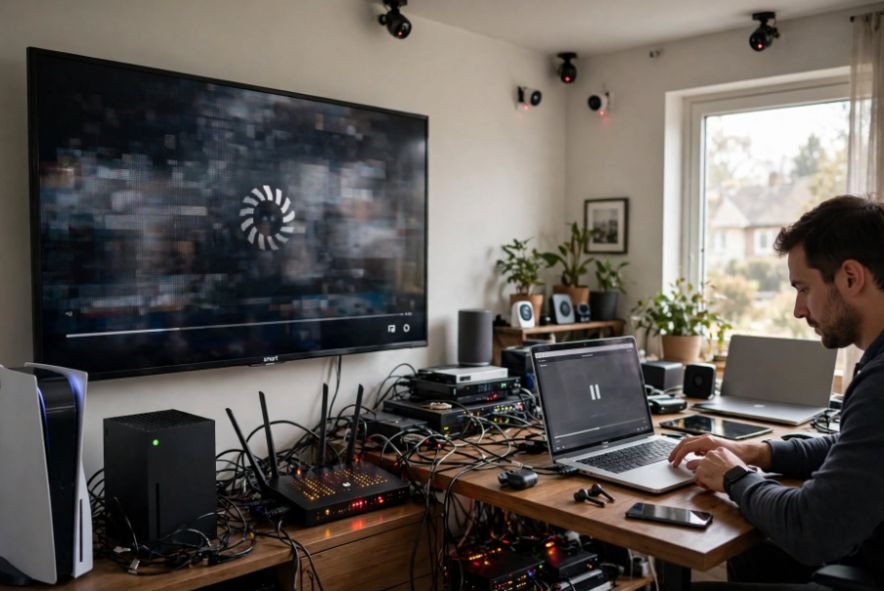
Nothing ruins movie night faster than a spinning loading circle. I’ve experienced how frustrating it can be when Netflix freezes even though my internet connection seems perfectly fine. Paying for high-speed broadband makes the situation even more confusing.
If you’re wondering why does my smart tv buffer with fast internet, the problem often lies beyond your internet subscription. Weak Wi-Fi signals, overloaded TV processors, network congestion, and outdated streaming applications can interrupt video playback.
Fortunately, most problems are fixable without purchasing a new television or upgrading your internet plan. Here’s what I recommend checking first.
Why Does My Smart TV Buffer When My Internet Speed Is Good?
Fast internet doesn’t automatically guarantee smooth streaming. Your connection might deliver 500 Mbps to your router, but your television may receive much less because of interference, distance, or hardware limitations.
Bandwidth determines how much information your connection can transfer. Latency, packet loss, and network stability affect how consistently that information reaches your television.
When video data arrives too slowly or inconsistently, the streaming application pauses to reload.
That’s why smart TV buffering with high-speed internet can happen even when speed tests on other devices look excellent.
What Causes Smart TV Buffering Despite Fast Wi-Fi?
1. Weak Wi-Fi Signals and Electronic Interference
Your router’s location can significantly affect streaming performance.
Thick walls, furniture, metal objects, and nearby electronics can weaken wireless signals. A television positioned far from the router might struggle even when your smartphone receives excellent speeds elsewhere.
Unstable wireless signals can also cause smart TVs to disconnect from the network entirely rather than simply experience buffering. If you’re using a Roku TV and frequently lose your Wi-Fi connection, follow these steps to fix Roku TV Wi-Fi disconnection problems.
I recommend placing your router in a central, elevated location away from large appliances.
Try connecting your TV to the 5 GHz Wi-Fi band when it’s relatively close to the router. This band can deliver faster speeds with less interference, while 2.4 GHz generally offers better range.
2. Your Smart TV Processor or RAM Is Overloaded

Many smart TVs have relatively modest processors and limited memory.
Older hardware may struggle to run demanding streaming applications, especially when background processes consume system resources.
The result can resemble buffering, although freezing and playback stuttering sometimes indicate processing problems rather than slow internet.
Unplug your television for approximately 60 seconds, reconnect it, and restart the streaming app.
If supported, clear the application’s cache through your TV settings. This may resolve temporary software glitches.
3. Too Many Devices Are Sharing Your Network
Smartphones, gaming consoles, laptops, and security cameras compete for network resources.
Along with managing devices connected to your home network, it’s worth reviewing older devices that still have access to your online accounts. Learn how to remove old devices from your Google Account to manage unnecessary account access.
Large downloads and simultaneous 4K streams can create congestion, particularly when your router struggles to manage traffic efficiently.
Try pausing downloads and disconnecting unnecessary devices.
If your router supports Quality of Service (QoS), consider prioritizing your television’s streaming traffic. Properly configured QoS can reduce interruptions when multiple devices use the connection simultaneously.
4. Your Smart TV Software or Streaming App Is Outdated
Outdated firmware and applications can cause playback errors and compatibility issues.
Samsung, LG, Sony, and TCL televisions typically provide software update options within their settings menus.
Install available system updates and check whether Netflix, Hulu, Disney+, or other streaming applications need updating.
If only one service buffers, restart or reinstall that application before troubleshooting your entire network.
5. Streaming Servers or DNS Issues Are Affecting Playback
Sometimes the problem occurs outside your home.
Streaming services use content delivery networks (CDNs) to distribute videos. Temporary server issues or delivery problems can interrupt playback.
DNS problems can also affect access to streaming services, although changing DNS rarely fixes persistent video buffering by itself.
For advanced troubleshooting, you can test Google Public DNS at 8.8.8.8 and 8.8.4.4 or Cloudflare DNS at 1.1.1.1.
Record your original settings first so you can restore them if performance doesn’t improve.
How Can I Stop My Smart TV From Buffering Without Upgrading Internet?
Test the Internet Speed Directly on Your Television
Before changing anything, I recommend checking your television’s actual connection speed.
Use its built-in network diagnostic tool or an available speed-testing application.
Compare the results with your smartphone near the TV.
Netflix recommends at least 5 Mbps for Full HD and 15 Mbps for 4K streaming. However, consistent performance matters more than a single impressive test result.
Switch Between Ethernet and 5 GHz Wi-Fi
Ethernet usually provides a stable connection because it avoids wireless interference.
However, some smart TVs have Ethernet ports limited to 100 Mbps, even when connected to gigabit internet.
A strong 5 GHz Wi-Fi connection may achieve faster speeds than these ports.
Still, 100 Mbps is normally sufficient for 4K streaming. Choose whichever connection proves more stable rather than assuming the faster option is automatically better.
Lower Streaming Quality Temporarily
If your TV keeps buffering during 4K playback, try switching to 1080p.
Reducing video quality lowers bandwidth requirements and helps determine whether inconsistent data delivery is causing the interruptions.
If playback immediately improves, investigate your connection stability before restoring higher-quality streaming.
Why Does My Smart TV Buffer Only at Night?
Evening buffering can happen when household and neighborhood internet usage increases.
Between approximately 7 p.m. and 10 p.m., multiple people may be streaming, gaming, and downloading content simultaneously.
Run speed tests at different times and compare results.
If several devices experience slowdowns during peak hours, contact your provider, such as Xfinity, Spectrum, AT&T, or Verizon, to investigate possible network congestion.
Can an External Streaming Device Fix an Older Smart TV?
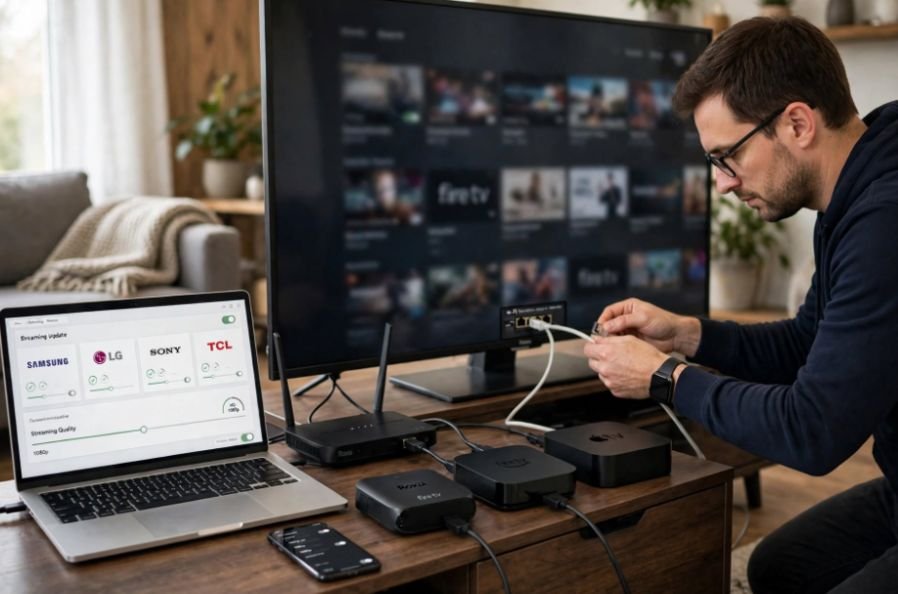
Sometimes the television’s built-in hardware becomes the biggest limitation.
If your apps freeze frequently, menus respond slowly, or software updates no longer improve performance, an external streaming device may help.
Roku Streaming Stick, Amazon Fire TV Stick, and Apple TV devices offer alternative processors and streaming software.
However, their performance varies by model, and they cannot repair an unstable internet connection.
I recommend considering this option only after testing your network and updating your television.
Frequently Asked Questions
1. Why Does My Smart TV Buffer With Fast Internet?
If you’re asking why does my smart tv buffer with fast internet, weak Wi-Fi coverage, network congestion, outdated applications, or limited TV hardware could be responsible. Test the connection directly on your television to identify the problem.
2. Why Does Netflix Buffer on My TV but Not My Phone?
Your television may receive a weaker Wi-Fi signal, use different wireless hardware, or have an outdated Netflix application. Compare connection speeds and update the app.
3. Will a Wi-Fi Extender Stop Smart TV Buffering?
A Wi-Fi extender may improve coverage when distance causes weak reception. However, it won’t fix streaming server outages or internet service problems.
4. Does Clearing the Cache Improve Smart TV Streaming?
Clearing cached application data can resolve some software glitches, but it won’t improve an unstable network connection.
Final Thoughts
Understanding why my smart TV buffers with fast internet starts with recognizing that connection speed is only one part of streaming performance.
I recommend checking Wi-Fi strength, restarting your television, updating applications, and comparing wired and wireless connections before spending money.
If those fixes don’t work, investigate network congestion, router settings, and aging hardware.
A few targeted adjustments can often restore smooth streaming without another expensive internet upgrade.