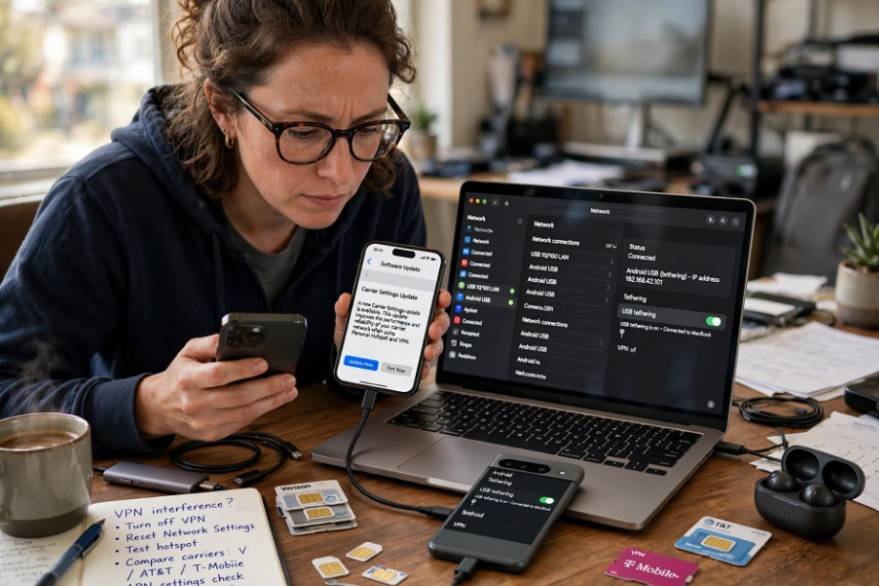
Imagine connecting your laptop to your iPhone hotspot, seeing the Wi-Fi symbol appear, and discovering that nothing loads. I’ve found this especially frustrating when working remotely, traveling, or joining an important video meeting.
Fortunately, understanding how to fix an iPhone hotspot connected but no internet is easier when you identify what’s causing the connection failure. The problem could involve cellular data restrictions, incompatible Wi-Fi settings, VPN interference, or temporary software glitches.
In this guide, I’ll explain 11 practical troubleshooting methods to restore your connection on Windows 11, Mac, Android, and other devices.
Why Is My iPhone Hotspot Connected but Not Working?
An iPhone hotspot can establish a wireless connection without successfully delivering internet access. Your laptop connects to the phone, but the phone may struggle to share its cellular data.
Common reasons include weak cellular coverage, exhausted hotspot allowances, outdated carrier settings, network routing errors, or incompatible wireless frequencies.
For American customers using Verizon, AT&T, or T-Mobile, hotspot restrictions may also depend on the specific cellular plan.
Before changing advanced settings, I recommend checking whether your iPhone can access the internet independently.
How to Fix iPhone Hotspot Connected but No Internet: 11 Solutions
1. Check Whether Your iPhone’s Cellular Data Works
Open Settings > Cellular and confirm Cellular Data is enabled.
Next, disable Wi-Fi on your iPhone and open Safari. Try loading a website you haven’t visited recently.
If the website doesn’t load, your cellular connection may be responsible.
Check your signal strength, move somewhere with better reception, and review your mobile data allowance. You can also check whether your carrier is experiencing a temporary outage.
2. Enable Maximize Compatibility for Better Connectivity
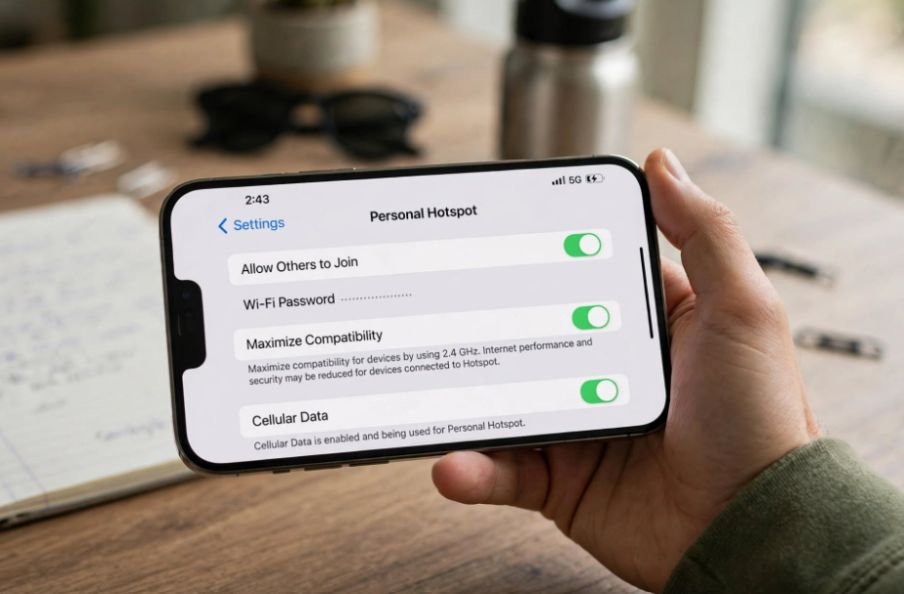
Newer iPhones support different Wi-Fi frequencies, but certain older laptops and tablets may struggle with their default hotspot configurations.
On an iPhone 12 or later, open Settings > Personal Hotspot and enable Maximize Compatibility.
This setting restricts hotspot Wi-Fi to the more widely supported 2.4 GHz band instead of 5 GHz.
Similar wireless compatibility and signal issues can affect other connected devices, including smart TVs. If your Roku TV frequently loses its Wi-Fi connection, explore these troubleshooting solutions for Roku TV Wi-Fi disconnections.
Although compatibility mode can improve connections with older devices, it may reduce performance and Wi-Fi security.
I recommend testing it when your device repeatedly connects without receiving usable internet access.
3. Refresh Your Connection Using Airplane Mode
Temporary cellular network glitches can interrupt internet sharing.
Open Control Center and enable Airplane Mode for approximately 10–15 seconds. Turn it off and wait for your iPhone to reconnect to the cellular network.
Next, open Settings > Personal Hotspot, disable Allow Others to Join, and enable it again.
Reconnect your laptop and check whether websites load.
4. Restart Your iPhone and Connected Device
Restarting both devices can resolve temporary software and network errors.
Power off your iPhone completely, restart it, and do the same with your laptop, tablet, or gaming console.
Once both devices restart, reconnect to the Personal Hotspot network.
I recommend restarting both devices because the receiving device may retain problematic network information even after the iPhone reconnects.
5. Change Your Hotspot Password and Forget the Network
If your laptop repeatedly connects without internet access, refreshing its saved connection information may help.
On your iPhone, open Settings > Personal Hotspot > Wi-Fi Password. Create a new password and save it.
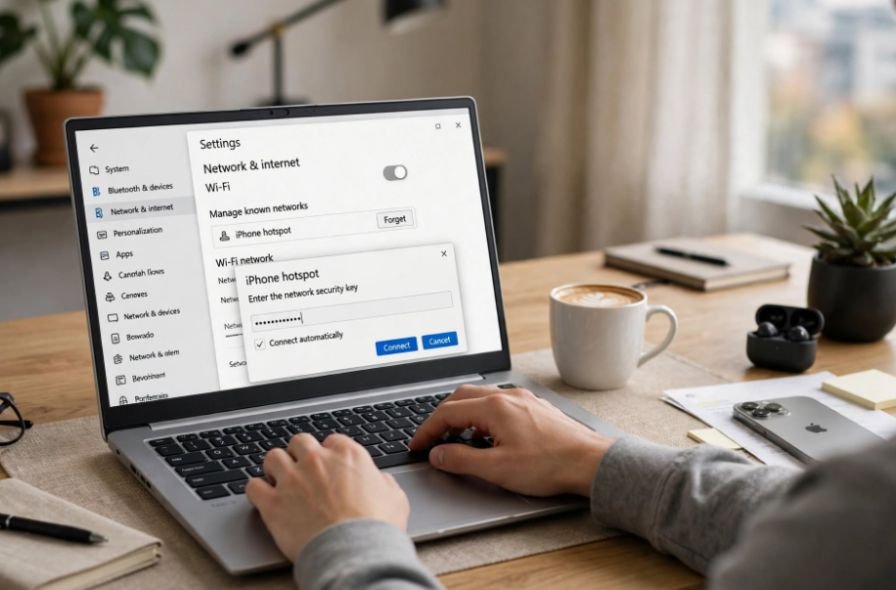
On Windows 11, navigate to Settings > Network & internet > Wi-Fi > Manage known networks. Find your iPhone hotspot and select Forget.
On a Mac or Android device, locate the saved hotspot under Wi-Fi settings and forget the network.
Reconnect using your new password.
6. Check Your Carrier’s Hotspot Data Restrictions
Unlimited smartphone data doesn’t necessarily mean unlimited high-speed hotspot access.
Verizon, AT&T, and T-Mobile offer plans with different tethering allowances, speed restrictions, and hotspot features.
Log in to your wireless carrier’s application and review your hotspot usage.
If you’ve exceeded your high-speed allowance, your carrier may reduce speeds significantly. Some plans also restrict hotspot functionality.
Contact your carrier if cellular browsing works but hotspot sharing remains unavailable.
7. Temporarily Disable VPN Connections

VPN applications can occasionally interfere with hotspot traffic or network routing.
On your iPhone, open Settings > General > VPN & Device Management and check for active VPN configurations.
Temporarily disconnect your VPN and test your hotspot. Repeat the process on your laptop if it also uses a VPN.
Avoid permanently deleting VPN profiles unless you know how to restore them.
For company-managed devices, consult your IT department before modifying security settings.
8. Update iOS and Carrier Settings
Outdated software sometimes contributes to connectivity problems.
Open Settings > General > Software Update to check for an available iOS update.
For carrier settings, navigate to Settings > General > About and remain on the screen briefly, around 15 seconds.
If an update is available, your iPhone may display a Carrier Settings Update prompt.
Install the update and test your connection again.
9. Fix iPhone Hotspot Internet Issues on Windows 11
If your iPhone hotspot works on another device but not your Windows laptop, investigate the computer’s network configuration.
Start by checking Settings > Network & internet for VPN, proxy, or DNS-related problems.
If basic troubleshooting fails, open Command Prompt as Administrator and run these commands individually:
netsh winsock reset
netsh int ip reset
ipconfig /release
ipconfig /renew
ipconfig /flushdns
These commands reset parts of Windows networking, renew IP configuration, and clear cached DNS records.
They can temporarily interrupt connectivity and affect custom network settings. Use them only when necessary, restart Windows afterward, and consult IT before running them on managed computers.
10. Fix Hotspot Problems on Mac or Android
If your Mac connects but cannot browse, open System Settings > Network.
When multiple network services are active, open the network action menu and select Set Service Order, where available.
Move Wi-Fi above other services if you want the Mac to prioritize your hotspot connection. This helps when traffic is routed through another active interface.
For Android devices, forget the saved iPhone hotspot, reconnect, and check VPN or Private DNS settings.
Besides managing wireless connections, iPhone users may also want to control how personal data is shared across their Apple devices. If you don’t want your pictures automatically appearing on your iPad, learn how to stop iPhone photos from syncing to iPad.
You can also test USB tethering with a compatible cable. On Windows, the appropriate Apple device software or drivers may be required.
11. Reset Your iPhone’s Network Settings
If everything else fails, resetting network settings may resolve persistent configuration issues.
Open Settings > General > Transfer or Reset iPhone > Reset > Reset Network Settings.
This resets saved Wi-Fi networks, passwords, cellular configurations, and certain VPN/APN settings. It can also affect Bluetooth connection records.
Your photos, apps, and personal files remain intact.
I recommend saving important network information before proceeding.
What if Your iPhone Hotspot Still Has No Internet?
Try connecting a second laptop or tablet to determine whether the problem affects every device.
If multiple devices fail, contact your wireless carrier to investigate cellular coverage, tethering restrictions, or account provisioning.
If only one device fails, focus on its network configuration. You can also contact Apple Support when problems persist despite successful cellular browsing.
Frequently Asked Questions
1. Why Does My iPhone Hotspot Say Connected but Have No Internet?
Your cellular connection may be unavailable, your hotspot allowance may be exhausted, or your receiving device may have incorrect network settings.
2. How Can I Fix an iPhone Hotspot That Doesn’t Work on Windows 11?
Forget the hotspot network, reconnect, check VPN and proxy settings, and use Windows network diagnostics before attempting advanced commands.
3. Can an iOS Update Cause Personal Hotspot Internet Problems?
Software changes can occasionally introduce connection issues. Check for subsequent iOS and carrier settings updates and restart both devices.
4. Will Resetting Network Settings Delete My Personal Data?
No. Your photos and applications remain intact, but saved Wi-Fi passwords and certain network configurations are reset.
Final Thoughts
When I encounter hotspot connectivity problems, I start with cellular data, compatibility settings, and a simple restart before attempting advanced troubleshooting.
Learning how to fix an iPhone hotspot that connects but has no internet helps you distinguish between carrier restrictions, wireless compatibility problems, and device-specific network errors.
With these steps, you can troubleshoot systematically, avoid unnecessary resets, and restore a more reliable internet connection.