Automatic app updates can be helpful, but they aren’t always convenient. I’ve noticed that unexpected updates can change familiar app features, consume mobile data, and sometimes interrupt the way I use my phone. Fortunately, Samsung Galaxy devices let you control when most applications receive updates.
If you’re wondering how to turn off automatic app updates on a Samsung phone, the quickest solution is to open the Google Play Store, tap your profile icon, select Settings, then Network preferences, and choose Don’t auto-update apps. You should also disable automatic updates in Samsung Galaxy Store because both stores manage applications independently.
Whether you use a Galaxy S series, Galaxy A series, or Galaxy Z series phone, I’ll explain how to stop unwanted updates, manage individual apps, and keep your device secure.
How to Turn Off Automatic App Updates in Google Play Store
Google Play Store handles updates for most everyday Android applications, including WhatsApp, Instagram, YouTube, and many popular banking and shopping apps.
If you want to disable automatic app updates on Samsung, start with these settings.
Step 1: Open Google Play Store
Launch the Google Play Store application on your Samsung Galaxy phone. You’ll usually find it on your home screen or in the app drawer.
Step 2: Tap Your Profile Icon
Tap your profile picture in the upper-right corner. This opens the menu containing your Google account and Play Store settings.
Step 3: Open Network Preferences
Select Settings and expand Network preferences. This section controls how Google Play uses your internet connection for downloads and updates.
Step 4: Select Auto-Update Apps
Tap Auto-update apps to view the available update preferences.
Step 5: Disable Automatic Updates
Choose Don’t auto-update apps and confirm your selection if prompted.
Your regular Play Store applications will no longer update automatically under this preference. However, you can still install updates manually.
If your main concern is cellular data usage, consider choosing Update over Wi-Fi only instead. This option is particularly useful if you have a limited data plan with Verizon, AT&T, T-Mobile, or another American wireless carrier.
How to Stop Automatic Updates in Samsung Galaxy Store
Samsung Galaxy phones include a second application marketplace called Galaxy Store.
This store manages various Samsung-specific applications and services, including supported components associated with Samsung Gallery, Samsung Keyboard, and other Galaxy features.
Disabling automatic updates in Google Play Store won’t automatically change your Galaxy Store preferences.
Step 1: Open Galaxy Store
Locate and launch Galaxy Store on your Samsung phone.
Step 2: Access the Menu
Tap Menu, represented by three horizontal lines, usually located in the bottom-right corner.
Step 3: Open Galaxy Store Settings
Select the gear-shaped Settings icon near the top of the menu.
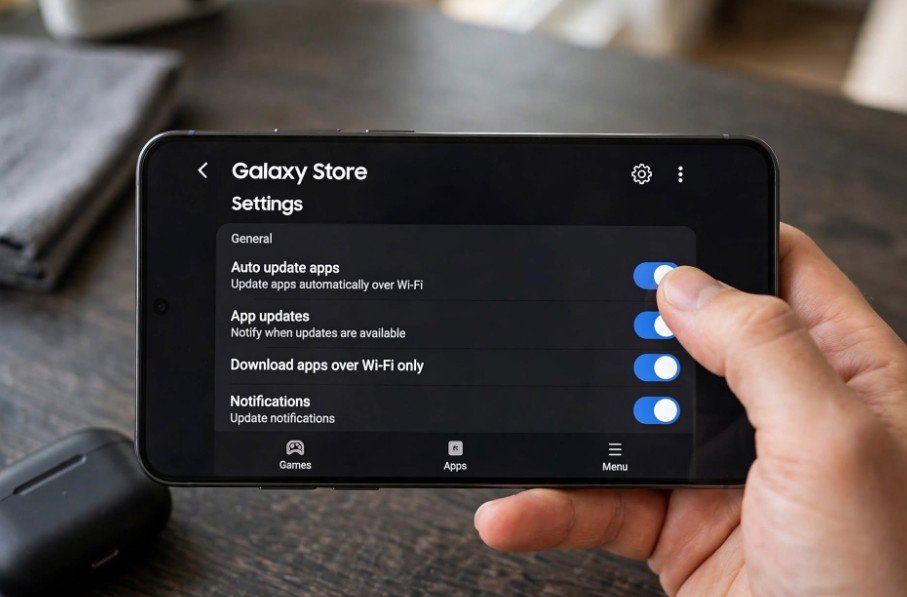
Step 4: Find Auto Update Apps
Tap Auto update apps to view the available settings.
Step 5: Select Never
Choose Never, or the equivalent option to disable automatic updates if your version uses different wording.
This stops ordinary Galaxy Store apps from updating automatically.
Remember that Samsung occasionally changes menu layouts through One UI and store updates, so some options may appear in slightly different locations.
How to Turn Off Auto-Updates for One App on Samsung
Sometimes I want automatic updates enabled for most applications while preventing one particular app from changing.
For example, you might prefer an older interface in a productivity app or want to avoid an unexpected update before an important task.
Fortunately, Google Play lets you disable automatic updates for individual applications.
Disable Automatic Updates for a Specific App
Open Google Play Store and search for the application you want to manage.
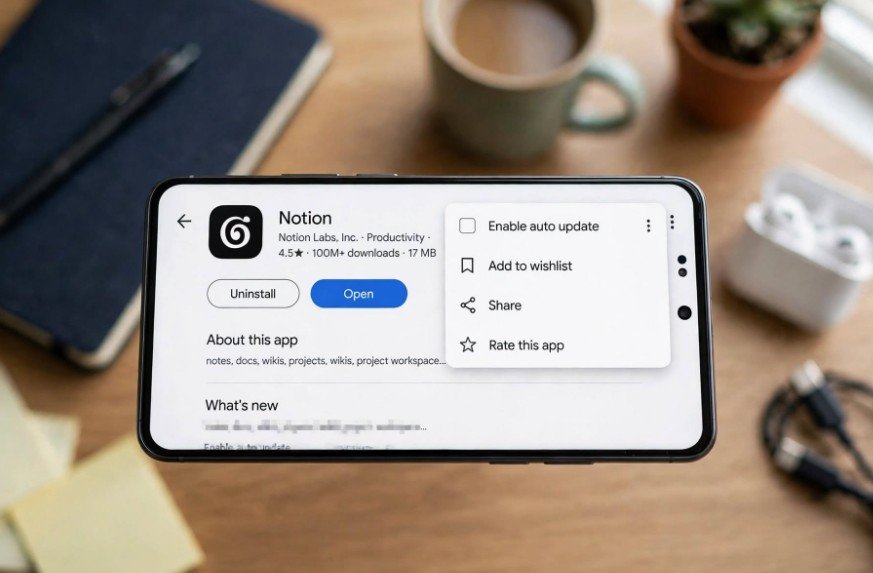
Tap the application to open its details page. Next, select the three vertical dots in the upper-right corner.
Find Enable auto update and uncheck it.
You can also reach the app through your profile icon, Manage apps & device, and the Manage tab.
Other applications can continue updating automatically while your selected app remains under manual control.
Beyond managing app settings, users can also customize how their social media profiles and posts appear using fully invisible characters for social media.
For supported Galaxy Store applications, individual update settings may also be available through the app’s store details page.
How to Update Samsung Apps Manually After Disabling Auto-Updates
Turning off automatic updates doesn’t mean you must keep outdated applications forever.
I recommend reviewing available updates regularly rather than ignoring them completely.
Manually Update Google Play Apps
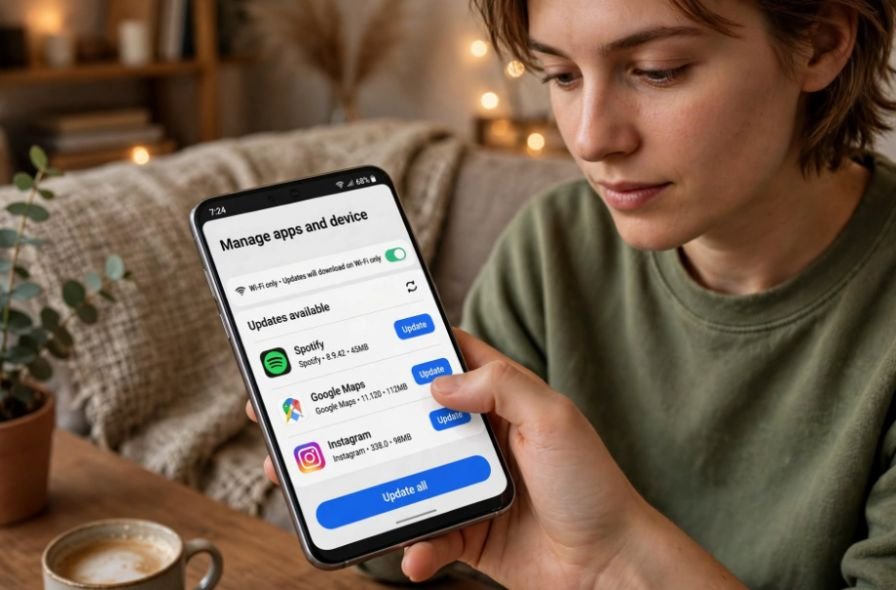
Open Google Play Store, tap your profile icon, and choose Manage apps & device.
Under Updates available, select See details to review pending updates.
Tap Update beside a particular app or choose Update all to install everything available.
Manually Update Galaxy Store Apps
Open Galaxy Store and select Menu, followed by Updates.
Review the available applications and choose individual updates or Update all.
This approach lets you decide when to install new features, compatibility improvements, and security fixes.
You can also troubleshoot other device-related issues to maintain a smoother smartphone experience. For example, if you use wireless headphones with a Windows 11 computer, learn how to fix Bluetooth headphones cutting out on Windows 11.
Why Are My Samsung Apps Still Updating Automatically?
If your Samsung apps keep updating automatically even after changing the settings, several factors could explain the problem.
Automatic Updates Are Enabled in Another Store
Google Play Store and Galaxy Store maintain separate update preferences.
Check both stores to make sure automatic updates are disabled.
Individual Apps Have Different Settings
Some applications include their own update controls. Review the app’s Play Store details page to confirm that Enable auto update is switched off.
Critical Security Updates Are Being Installed
Google may install certain updates that fix critical security vulnerabilities, regardless of your normal automatic update preferences.
Other essential system components may also receive updates through separate mechanisms.
Google Play Settings Were Reset
If you recently cleared Google Play Store data, your update preferences may have returned to their defaults.
Reopen Network preferences and check the settings again.
Does Disabling Automatic App Updates Save Mobile Data and Battery?
Yes, disabling background app updates can reduce unnecessary downloads and installation activity.
However, the actual savings depend on how frequently your applications update and whether you normally connect to Wi-Fi.
For anyone researching how to turn off automatic app updates on a Samsung phone, I recommend considering Wi-Fi-only updates before disabling everything.
You can keep important applications current without routinely using your monthly cellular data allowance.
Is It Safe to Disable Automatic App Updates on Samsung?

Disabling automatic updates is generally manageable if you continue checking for important updates manually.
However, outdated applications may contain security vulnerabilities, bugs, or compatibility problems.
I suggest prioritizing updates for banking apps, password managers, browsers, and other applications that handle personal information.
Also, remember that disabling app updates doesn’t stop Android or Samsung One UI software updates. You can review those separately under Settings and Software update.
Keeping your phone’s security patches current remains important.
Frequently Asked Questions
1. Can I Turn Off Samsung App Updates Without Disabling Wi-Fi?
Yes. You can disable automatic updates through Google Play Store and Galaxy Store while keeping Wi-Fi enabled for browsing, streaming, and other activities.
2. Can I Stop One Samsung App From Updating Automatically?
Yes. Open the app’s Google Play Store details page, tap the three-dot menu, and disable Enable auto update. Other apps can continue updating normally.
3. Will My Samsung Apps Work Without Automatic Updates?
Most applications will continue working, but some may eventually require newer versions for security, compatibility, or access to certain services.
4. Does Turning Off Automatic App Updates Stop One UI Updates?
No. Application updates and Samsung software updates use different settings. Disabling app updates doesn’t automatically disable operating system or security updates.
Final Thoughts
I prefer having the flexibility to decide when my phone installs new application versions. Automatic updates offer convenience, but manual control can help reduce unwanted changes and unexpected data usage.
Once you understand how to turn off automatic app updates on a Samsung phone, managing downloads becomes much easier.
For the best balance, I’d recommend allowing essential security updates, using Wi-Fi whenever possible, and reviewing other app updates manually.
This way, you can enjoy a more predictable Samsung Galaxy experience without sacrificing the security and reliability your phone needs.