

Have you ever opened your iPad and discovered that every picture from your iPhone suddenly appeared there? I’ve experienced how frustrating automatic photo sharing can be, especially when I want separate photo collections or need more storage space.
Fortunately, learning how to stop iPhone photos from syncing to iPad is easier than you might think. You don’t need to delete your pictures, create another Apple Account, or disconnect your devices completely.
The quickest solution is to open Settings on your iPad, tap your name, select iCloud, choose Photos, and turn off Sync this iPad. I’ll explain the complete process, including how to protect existing pictures and prevent unwanted photo sharing.
Why Are My iPhone Photos Automatically Showing Up on My iPad?
Your iPhone photos appear on your iPad because both devices use the same Apple Account with iCloud Photos enabled.
Apple’s iCloud Photos service automatically uploads pictures and videos to cloud storage and synchronizes them across connected devices.
For example, when I take a picture on my iPhone, that image can automatically appear on my iPad once synchronization finishes.
Although this feature is convenient, it can become frustrating when you want to keep personal pictures private, organize separate libraries, or avoid filling your iPad’s storage.
Fortunately, you can stop sharing photos between iPhone and iPad without disabling other iCloud services.
How to Stop iPhone Photos From Syncing to iPad in 5 Easy Steps
The simplest way to unsync photos from iPhone to iPad is to disable iCloud Photos on your iPad only. Your iPhone can continue synchronizing pictures with iCloud independently.
Step 1: Open the Settings App on Your iPad
Unlock your iPad and open Settings. Make sure you’re changing the settings on your iPad rather than your iPhone.
Step 2: Select Your Apple Account
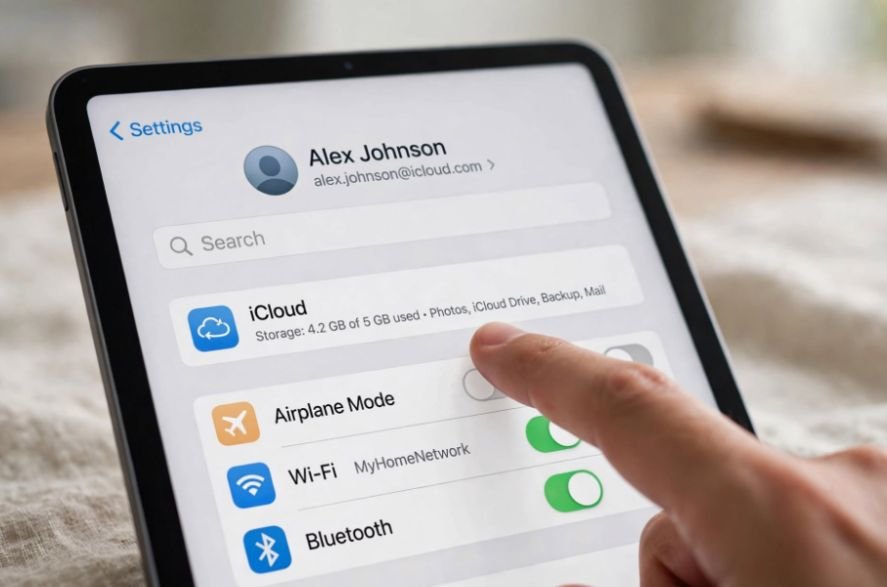
Tap your name at the top of the Settings sidebar. This opens your Apple Account settings, where you can manage connected iCloud services.
Step 3: Open iCloud Photos Settings
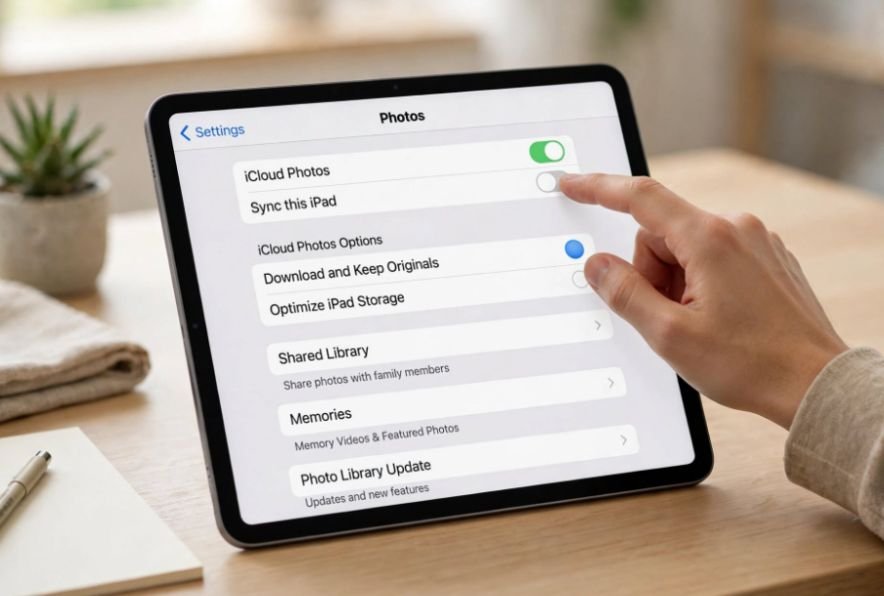
Select iCloud. Under Saved to iCloud or Apps Using iCloud, tap Photos. Depending on your iPadOS version, you may need to select See All before finding Photos.
Step 4: Turn Off Sync This iPad
Find the switch labeled Sync this iPad and turn it off.
This prevents new photos, videos, edits, and deletions from automatically syncing between your iPad and your iCloud Photos library.
Your iPhone’s iCloud Photos settings remain unchanged.
Step 5: Choose What Happens to Existing Photos
After disabling synchronization, your iPad may offer options for handling previously synced pictures.
Download Photos & Videos: Choose this option if you want to keep full-resolution copies of your iCloud pictures on your iPad. Make sure you have enough available storage before downloading.
Remove from iPad: Choose this option if you want to remove previously synced iCloud photos from your iPad without deleting the originals stored in iCloud or on your other synchronized devices.
I recommend confirming that your important pictures are safely stored before choosing either option.
How to Stop Photo Syncing Without Deleting Pictures
One common concern about disabling iCloud Photos is whether existing pictures will disappear permanently.
Fortunately, turning off Sync on this iPad doesn’t automatically delete pictures from your iPhone or iCloud library.
However, deleting a picture while iCloud Photos remains enabled can remove it from every device connected to the synchronized library.
That’s why I recommend turning off synchronization before removing unwanted copies from your iPad.
If you’re wondering how to keep iPhone and iPad photos separate, leave Sync this iPhone enabled on your phone while keeping Sync this iPad disabled.
Also, avoid the account-wide Turn Off and Delete Photos option in iCloud storage settings. That option affects your entire iCloud Photos library and can lead to deletion from iCloud after 30 days.
How to Remove Synced Photos From iPad but Keep Them on iPhone
If your iPad already contains hundreds of pictures from your iPhone, turning off synchronization might not immediately remove every image.
Some pictures may already be downloaded to your iPad’s internal storage.
Before deleting anything, verify that your original pictures remain available on your iPhone or through iCloud.com.
After disabling iCloud Photos on your iPad, you can remove unwanted local copies without synchronizing those deletions back to your iPhone.
However, be especially careful with pictures imported manually or stored only on your iPad. Deleting those files could permanently remove your only copies.
I prefer confirming that a separate backup exists before cleaning up an older photo library.
Why Are My iPhone Photos Still Appearing on My iPad After Turning Off Sync?
If pictures continue appearing after you disable photo synchronization, another sharing feature may be responsible.
Are Shared Albums Still Enabled?
Shared Albums allow you to share pictures with selected people and devices separately from normal photo library syncing.
Open Settings, tap your name, select iCloud, and choose Photos. Review the Shared Albums setting and disable it if you no longer want to use the feature.
Is iCloud Shared Photo Library Active?
A Shared Photo Library allows participating users to contribute pictures to a common collection.
Check Settings, open Apps, select Photos, and review Shared Library if available. Understand which pictures belong to the shared collection before making changes.
Are Google Photos or OneDrive Syncing Pictures?
Third-party apps such as Google Photos and Microsoft OneDrive can also display pictures uploaded from your iPhone.
Digital platforms also offer different ways to store, share, and explore online content beyond photo management. If you’re interested in discovering gaming-related digital experiences, take a look at the DigitalRGS.org gaming world for an introduction to that space.
When organizing social media posts or profile descriptions, you may also want to control how text and spacing appear across different platforms. Using fully invisible characters for social media can help create blank spaces and formatting effects in supported text fields.
If photos continue appearing inside these applications, review their backup and account settings separately.
Disabling iCloud Photos does not automatically stop other cloud storage services.
Can You Keep iCloud Photos on iPhone but Turn It Off on iPad?

Yes. You can keep iCloud Photos enabled on your iPhone while disabling synchronization on your iPad.
Your iPhone can continue uploading pictures to iCloud, while your iPad maintains its own locally stored photo collection.
This arrangement works particularly well if you use your iPhone for photography but reserve your iPad for work, entertainment, or family activities.
You don’t need separate Apple Accounts or changes to unrelated services such as Contacts, Notes, or Messages.
Frequently Asked Questions
1. Will Turning Off iCloud Photos on My iPad Delete Photos From My iPhone?
No. Disabling iCloud Photos on your iPad does not delete pictures from your iPhone or iCloud account. However, always check your photo backups before removing downloaded pictures from your iPad.
2. How Do I Stop New iPhone Pictures From Appearing on My iPad?
Open Settings, select your name, tap iCloud, choose Photos, and disable Sync this iPad. This stops new iCloud Photos updates from reaching your iPad.
3. Can I Keep Different Photo Libraries on My iPhone and iPad?
Yes. You can maintain separate photo libraries by disabling iCloud Photos synchronization on your iPad while keeping it enabled on your iPhone.
4. How to Stop iPhone Photos From Syncing to iPad Without Losing Pictures?
To understand how to stop iPhone photos from syncing to iPad safely, first confirm your original pictures are backed up. Then disable Sync this iPad and select Download Photos & Videos if you want to keep local copies, or Remove from iPad if you want to clear previously synchronized pictures.
Final Thoughts
I believe managing photos across Apple devices should be convenient rather than confusing. Automatic syncing is useful, but it isn’t necessary when you prefer keeping your iPhone and iPad photo collections separate.
Once you understand how to stop iPhone photos from syncing to iPad, you can protect your personal pictures, reduce unnecessary storage usage, and control where your memories appear.
My recommendation is simple: disable Sync this iPad, verify your backups, and carefully choose what happens to existing pictures. That way, you can enjoy both devices without worrying about unwanted photo synchronization.