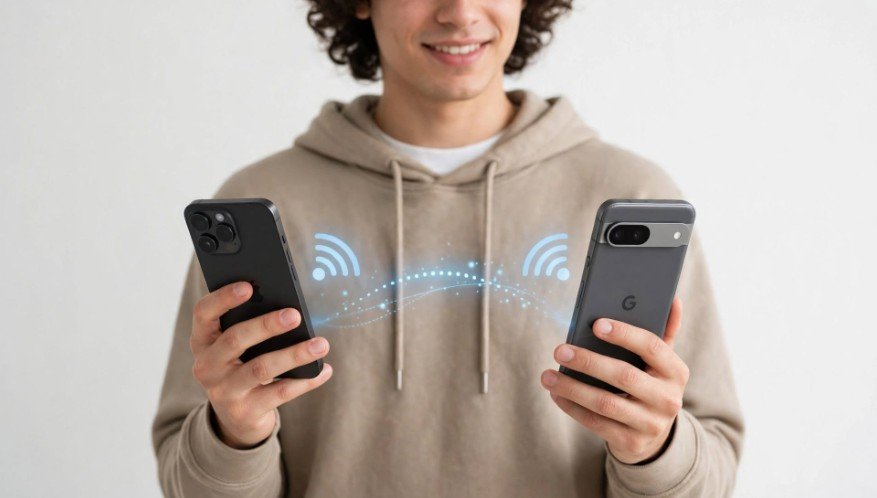
Sharing your home Wi-Fi with friends or family should take seconds, not minutes. However, connecting an Android phone to an iPhone’s saved network can seem confusing, especially when Apple’s automatic password-sharing feature doesn’t appear.
If you’re wondering how to share a Wi-Fi password from iPhone to Android, I have three practical solutions. You can generate a Wi-Fi QR code, reveal your saved password, or use Apple’s Shortcuts app on older iPhones.
The best part? You don’t need expensive software or complicated settings. I’ll walk you through each method so you can connect your Samsung, Google Pixel, or another Android device without unnecessary hassle.
Can You Share a Wi-Fi Password Directly From iPhone to Android?
Yes, but Apple’s native Share Password pop-up doesn’t work between iPhones and Android phones. That proximity-based feature supports compatible Apple devices, including iPhones, iPads, and Macs.
Fortunately, iOS offers alternative ways to share wireless network credentials.
If your iPhone runs iOS 18 or later, you can generate a QR code using the built-in Passwords app. For iOS 16 and newer, you can view and copy saved Wi-Fi passwords. Older compatible iPhones may use the Shortcuts app to create a scannable code.
How to Share Wi-Fi Password From iPhone to Android Using a QR Code
For iPhones running iOS 18 or later, I recommend the QR code method because it’s quick, convenient, and doesn’t require additional applications.
Step 1: Open the Passwords App on Your iPhone
Unlock your iPhone and open the preinstalled Passwords app.
Authenticate using Face ID, Touch ID, or your device passcode. Once inside, select the Wi-Fi category.
You’ll find previously saved wireless networks, including your current connection.
Step 2: Generate the Wi-Fi QR Code
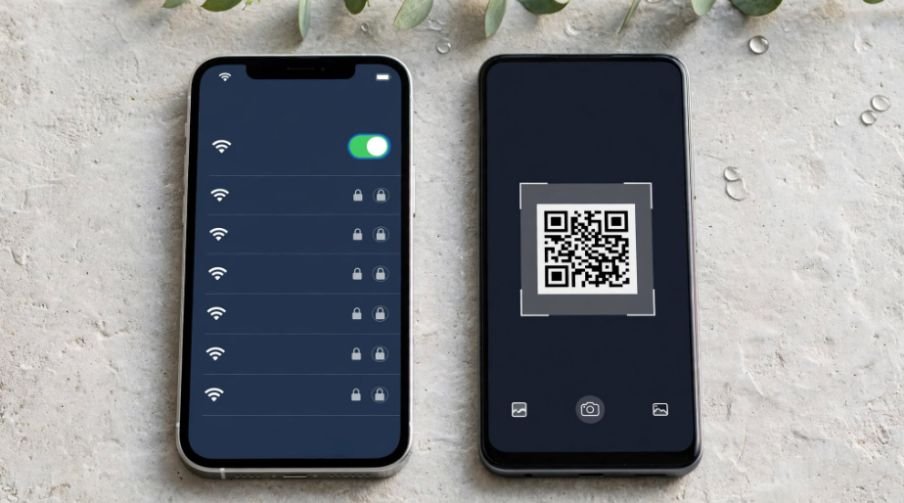
Select the network you want to share and tap “Show Network QR Code.”
Your iPhone will display a scannable code containing the network connection details.
Keep the screen open so the other person can scan it.
Step 3: Scan the Code With Your Android Phone
On the Android device, open the Camera app and point it toward the QR code on your iPhone.
Wait for the network notification to appear, then tap Join or Connect, depending on the device.
If the camera doesn’t recognize the code, try the built-in QR scanner in the Android phone’s Wi-Fi settings or Quick Settings.
This method is especially convenient when guests visit your home and need internet access without entering a complicated password.
How to Share an iPhone Wi-Fi Password Manually on iOS 16 or Later
If you prefer traditional password sharing, Apple lets you reveal your saved Wi-Fi credentials directly through Settings.
Step 1: Find Your Saved Wi-Fi Password
Open Settings on your iPhone and tap Wi-Fi.
Locate your connected wireless network and select the blue information icon beside its name.
Tap the hidden Password field and authenticate using Face ID, Touch ID, or your passcode.
Your iPhone will reveal the actual network password.
Step 2: Copy and Share the Password
Tap Copy to save the password temporarily to your clipboard.
You can paste it into a text message or another trusted messaging service.
IPhone users can also manage how other types of data are shared across their Apple devices. If you want to prevent pictures from automatically appearing on your iPad, learn how to stop iPhone photos from syncing to iPad.
Alternatively, read it aloud to the Android user.
On their phone, open Settings, select Network & Internet or Connections, and tap Wi-Fi.
Choose the appropriate network, enter the password, and connect.
I recommend checking uppercase letters, numbers, and special characters carefully because wireless passwords are case-sensitive.
How to Share Wi-Fi Using the Shortcuts App on Older iPhones
If your iPhone runs iOS 17 or an earlier compatible version, Apple’s Shortcuts app offers another way to create a QR code.
This solution is useful when your device doesn’t have the dedicated Passwords app.
Step 1: Find the QR Your Wi-Fi Shortcut
Open the Shortcuts app and select the Gallery tab.
Search for “QR Your Wi-Fi.” If the shortcut appears, tap it and choose Add Shortcut.
Return to your Shortcuts library and locate the newly added shortcut.
Step 2: Enter Your Network Information
Tap Your Wi-Fi to run it.
Enter your wireless network name, also known as the SSID (Service Set Identifier), and select Done.
Next, carefully type your Wi-Fi password and confirm it.
The shortcut should generate a QR code containing the supplied network details.
Step 3: Let Android Scan the Generated Code
Display the QR code on your iPhone and ask the Android user to scan it using their Camera app.
Tap the network connection prompt to join.
If your Wi-Fi isn’t available in your Gallery, you can create a custom shortcut using QR code actions, although you’ll need to format the network details correctly.
Remember that older iPhones running iOS 15 or earlier generally cannot reveal saved Wi-Fi passwords through standard Settings. You may need to retrieve the password from your router, its management app, or another connected device.
How to Share Wi-Fi Password From iPhone to Samsung or Google Pixel
Samsung Galaxy and Google Pixel phones support standard Wi-Fi QR codes, so the sharing process is similar.
For Samsung devices, open the Camera app and scan the code. If scanning fails, navigate to Settings > Connections > Wi-Fi and look for the QR scanner.
On a Google Pixel, use the Camera app or the available QR scanner.
Once the device recognizes the network, a connection window prompt may appear on the screen. Tap Join or Connect and follow the on-screen instructions to establish the Wi-Fi connection.
The exact menu names and window prompt options may vary depending on your Android version and phone manufacturer.
Why Isn’t My iPhone Wi-Fi Password Sharing Working?
Even when you follow the correct instructions, occasional problems can prevent a successful connection.
Similar connectivity issues can also occur when using an iPhone as a personal hotspot, particularly when another device connects but cannot access the internet. If you’re experiencing this problem, follow these steps to fix an iPhone hotspot connected but with no internet.
Why Won’t Android Scan the iPhone QR Code?
Increase your iPhone’s brightness, clean the Android camera lens, and ensure the entire QR code is visible.
Try a different scanning distance or use the phone’s dedicated QR scanner.
Why Does Android Say the Wi-Fi Password Is Incorrect?
Check whether the network password has changed recently.
If necessary, forget the saved network on Android and reconnect using the current password.
Also confirm that you’re connecting to the correct network name.
Why Can’t I Find My Saved Wi-Fi Password?
Check your iOS version under Settings > General > About.
iOS 16 and later supports viewing saved passwords through Wi-Fi settings, while iOS 18 and newer also provides the Passwords app.
Older versions may require router access or another device with the saved credentials.
Is Sharing a Wi-Fi Password With Android Safe?

Sharing your home internet connection is generally safe when you trust the person receiving access.
However, a Wi-Fi QR code contains network credentials that compatible scanners can potentially reveal.
For additional protection, I recommend enabling a separate guest network through your router’s settings or internet provider’s management app.
Many routers supplied by American internet providers, including Xfinity, Spectrum, and Verizon, offer network management options, although available features vary.
Use WPA3 security when supported, or WPA2-AES for older compatible equipment.
Frequently Asked Questions
1. How to Share WiFi Password From iPhone to Android Without an App?
You can use the built-in Passwords app on iOS 18 or later to generate a QR code. On iOS 16 or newer, you can also reveal the password through Wi-Fi settings and share it manually.
2. Can I Share My iPhone Wi-Fi Password With Samsung Without Typing It?
Yes. Display your network’s QR code on your iPhone and scan it using the Samsung Galaxy camera or Wi-Fi QR scanner.
3. Can I Share a Wi-Fi Password From iPhone to Android Through Bluetooth?
No. Apple’s proximity-based password-sharing feature doesn’t support Android devices. QR codes and manual password entry are more reliable alternatives.
4. Does the Shortcuts Method Work on Every Older iPhone?
Not necessarily. The app, available shortcut actions, and Gallery options depend on your iOS version. Some older devices may require a manually created shortcut or another method.
Final Thoughts
I find QR codes the easiest way to connect Android phones to an iPhone’s saved wireless network. They’re convenient for guests, eliminate typing mistakes, and work across many popular smartphone brands.
Whether you’re using a newer iPhone or an older model, knowing how to share a Wi-Fi password from iPhone to Android helps you choose the most practical method.
For the smoothest experience, start with the built-in Passwords app, use manual sharing when needed, and consider Shortcuts for older supported devices.